HiBy W4 固件
- The following firmwares are all full upgrade packages, and the upgrade takes a long time. Please try to use the machine network upgrade function;
- Please try to upgrade rather than downgrade, because downgrading may cause unknown problems;
- Please judge by yourself whether the currently downloaded firmware is newer than the machine firmware; (that is, judge by the size of the version number)
HiBy W4 v1.1 Upgrade Firmware
Update instructions: Adapt to new screen driver, please know!
Update instructions:
- Added the function of swapping volume buttons (screen rotation) to facilitate blind operation;
- Fix the display tearing problem at the top of the screen;
- Fixed the problem that W4 cannot be recognized by USB on some Samsung mobile phones;
- Adjust Bluetooth reconnection decoding priority;
- Fixed several other bugs;
Changelog:
- Added volume button swap function (with screen rotation);
- Fixed the display issue at the top of the screen;
- Fixed USB recognition failure of W4 on some Samsung phones;
- Adjusted Bluetooth reconnection codec priority;
- Fixed several other bugs.
Upgrade package: HiBy W4 v1.1 Upgrade
Link: https://pan.baidu.com/s/1WJBa7-MrsQ2NrA_wV9ND5A?pwd=emm3 Extraction code: emm3
▶Firmware update method
(HiBy USB DFU Tool can be downloaded from the website (www.hiby.app). )
- MCU firmware upgrade
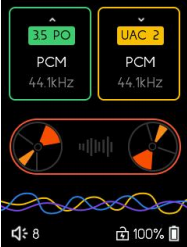
(1) Turn on the device and enter UAC mode (if it is in BT mode, click the icon in the upper right corner to switch).
(2) Open the upgrade tool, connect the device to the computer using a USB cable, and the device list will display HiByW4 information. Click on "Local Upgrade", and select the file "HiBy_W4 Firmware Package" from the USB directory for upgrade.
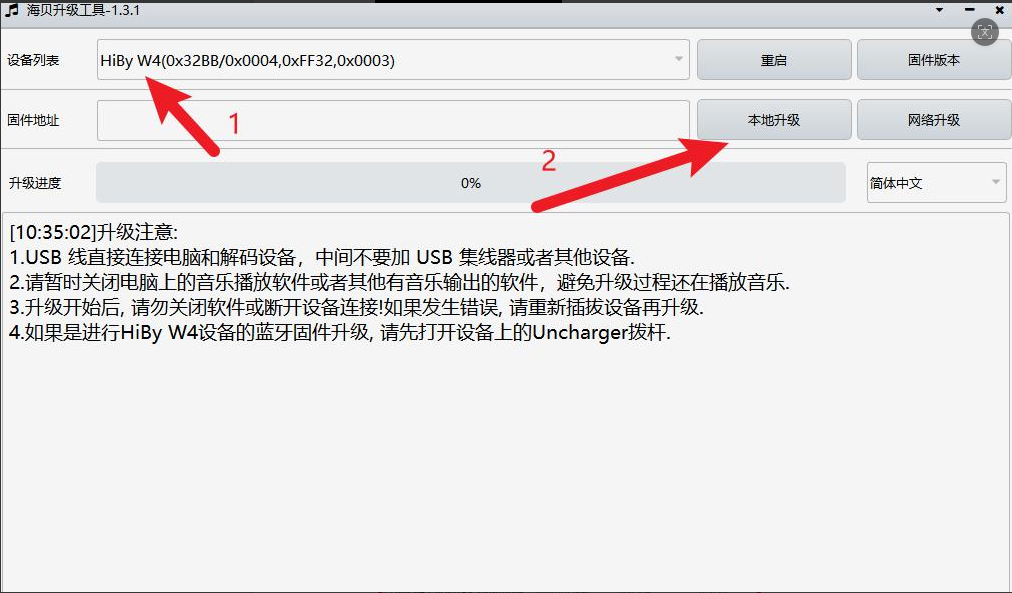
Note: Do not disconnect the USB during the upgrade process. If the USB is disconnected, please perform the upgrade again and do not directly close the upgrade tool (risk of bricking)! If the device remains unbootable after the upgrade fails, please contact customer service for assistance.
- Bluetooth firmware upgrade
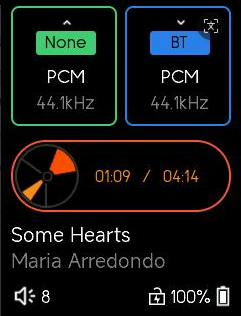
(1) Turn on the device and enter BT mode (if it is in UAC mode, click the icon in the top right corner to switch).
(2) Check if the power toggle lever on the left side of the device is toggled to the lower position. If not, toggle it to the lower position to enable charging.
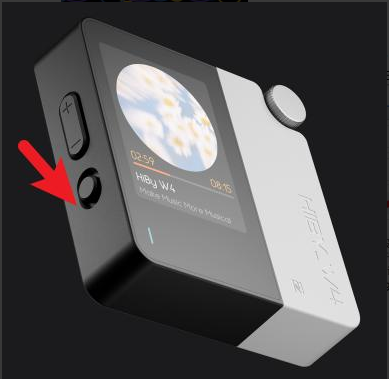
(3) Open the upgrade tool, connect the device to the computer using a USB cable, and the device list will display HiByW4BT information. Click on "Local Upgrade", and select the file "HiBy_W4 firmware package" from the BT directory for upgrade.
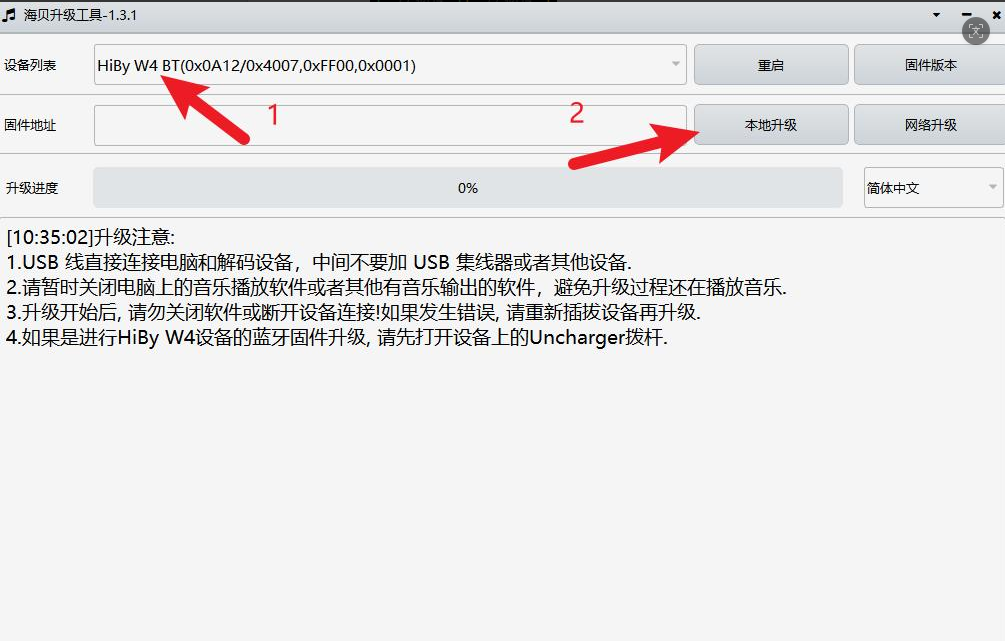
Note: If the device list is not displayed, it indicates that the USB has not been successfully recognized
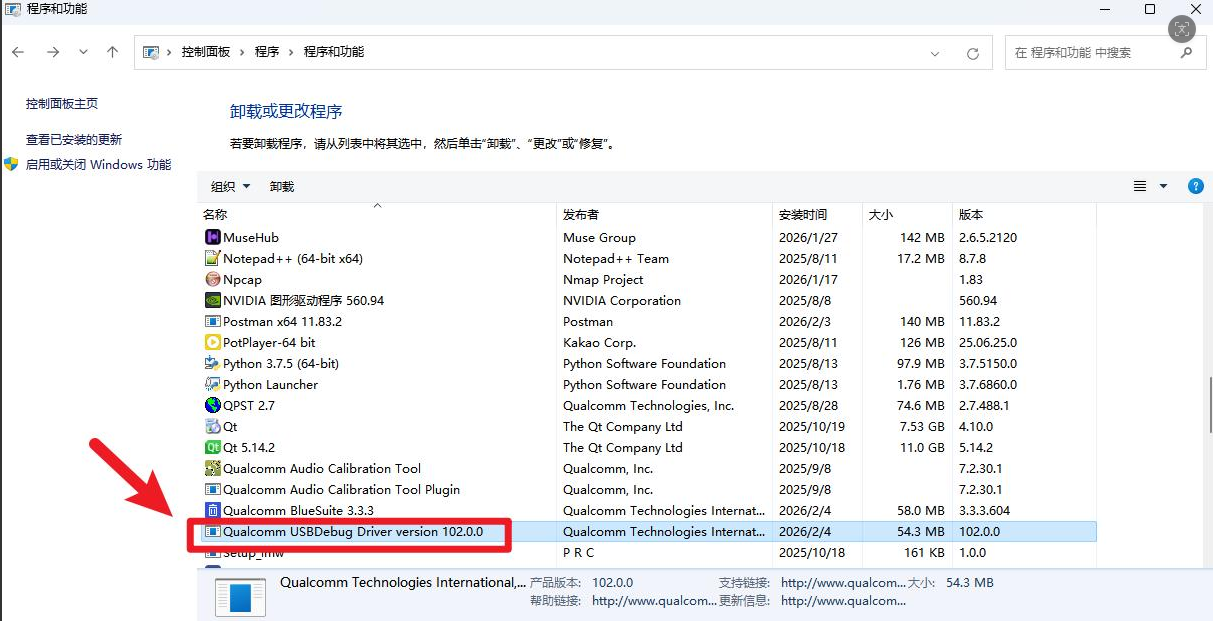
- Check if the computer has installed the Qualcomm USB Debug Driver, as it may affect the default USB recognition of Qualcomm devices.
Method for removing Qualcomm driver:
Open the "Control Panel", click on "Uninstall a Program", and check if "Qualcomm USB Debug Driver" is present. If it is, please temporarily remove it first. Select it and right-click on "Uninstall".