HiBy W4 manual
Welcome to use HiBy Music’s products
Thank you for purchasing the Bluetooth audio codec launched by HiBy Music. In order to let W4 bring you a better experience, this article introduces the common functions and operation methods of W4, hoping to help you understand and use W4 more comprehensively.
At the same time, you are also welcome to visit the official website of HiBy Music (HiBy) www.hiby.com to learn more about HiBy Music (HiBy) products and purchase related products.
W4 Product Picture
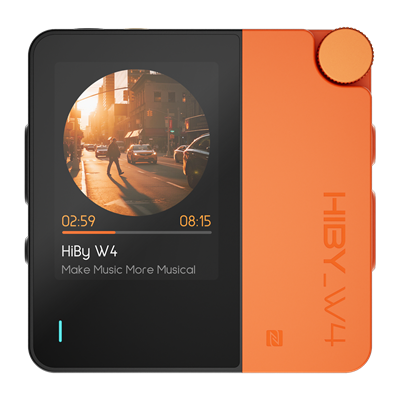
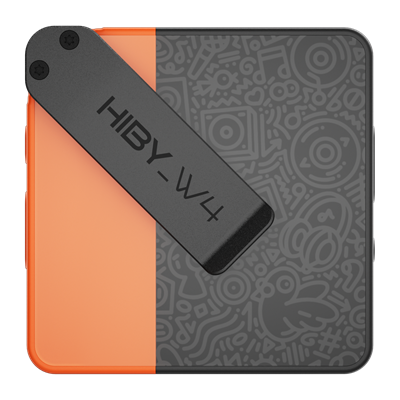
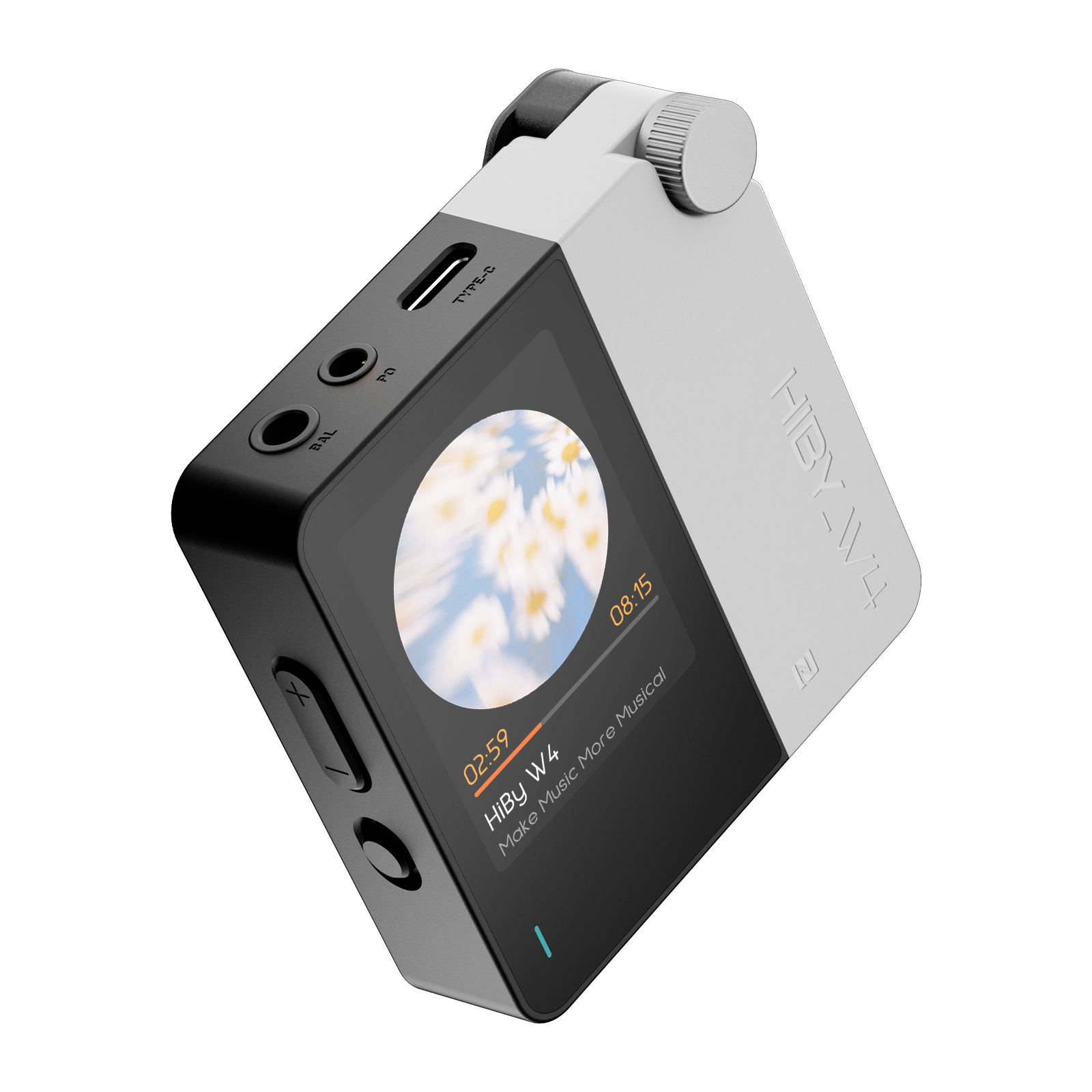
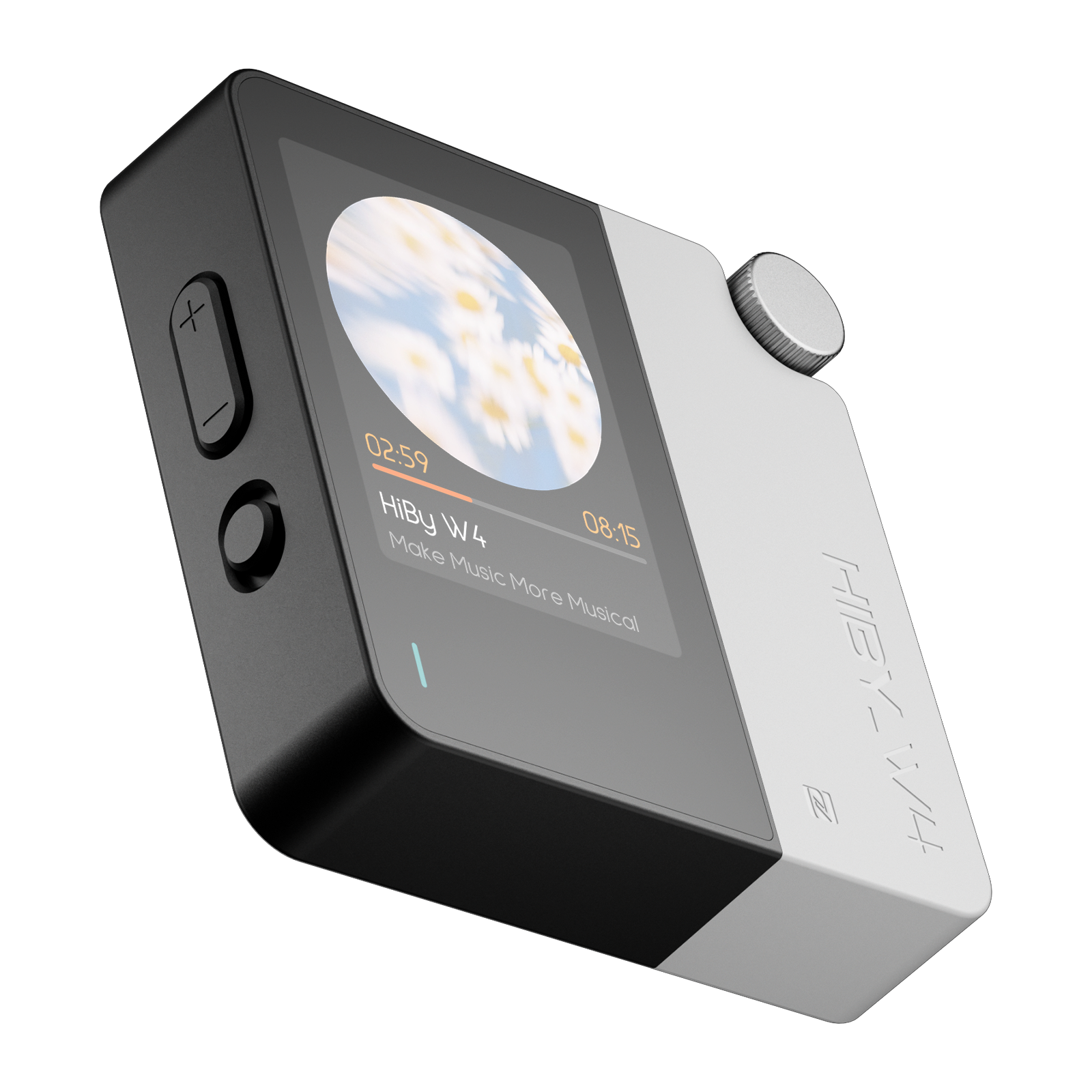
1. Product introduction
- Bluetooth decoding specifications: LDAC, aptX Lossless, aptX Adaptive, aptX-HD, aptX, AAC, SBC;
- USB decoding specifications: supports up to DSD512, PCM768kHz/32Bit;
- Supports Bluetooth 5.4 input, Type-C input, MIC input (in Bluetooth call mode), call function and call cVc noise reduction, NFC connection;
- Support 3.5mm PO output, 4.4mm BAL output;
- Support power follow mode;
Take the front view of the decoder as a reference:
- From top to bottom, the left side is: volume up key, volume down key, and charging lock key;
- From top to bottom, the right side is: power on/off screen key, play pause key, next song key;
- The top is: BAL, PO, Type-C;
- From top to bottom, the front is: display screen, indicator light, NFC logo, HIBY_W4 logo;
2. Button usage instructions
| Button | Function |
|---|---|
| Power on/off key/Screen on/off key | Long press for 2 seconds: turn on/off; short press: turn on/off screen; long press for 10 seconds to force shutdown |
| Play/pause button | Short press: play/pause, long press for 2 seconds: previous song |
| Next song button | Short press: next song |
| Volume up key | Short press the volume key: increase the volume |
| Volume down key | Short press the volume key: decrease the volume |
| Charging lock button | Dial up: Turn off the charging function and cannot charge; Dial down: Normal charging |
3. Interface usage instructions
Audio output interface
| Headphone jack | Support standards | Line control | Call |
|---|---|---|---|
| 3.5mm(PO) | All 3-segment and American standard (CTIA) 4-segment | Support (play/pause, volume increase and decrease) | Support |
| 4.4mm(BAL) | Not supported | Not supported |
USB interface
The physical interface used by the USB interface is the Type-C interface, which can be used for charging and UAC playback.
4. Indicator light description
1.Charge
| Status | Indicator |
|---|---|
| Charging | Red light flashing |
| Fully charged | Green light |
2.UAC mode
| Status | Indicator |
|---|---|
| Connection not playing | None |
| PCM sampling rate ≤ 48kHz | Yellow |
| PCM sampling rate 88.2kHz~192kHz | Cyan |
| PCM sampling rate ≥ 352.8kHz | Orange |
| DSD | White |
3.Bluetooth mode
| Status | Indicator |
|---|---|
| Bluetooth audio sampling rate ≤ 48kHz | Yellow |
| Bluetooth audio sampling rate 88.2kHz~192kHz | Cyan |
5. UI introduction
Using the visual touch interaction method, the page is divided into three parts: the main interface, the setting interface, and the playback interface. You can switch pages by sliding left and right, and click to enter the basic interaction method of secondary interface function operation.
Interface display
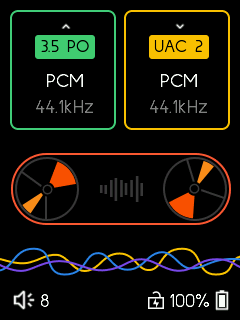
- Main interface: Shows the output interface (3.5PO/4.4BAL), output encoding (PCM/DSD), and output sampling rate; Display input mode (UAC/BT), input encoding (PCM/DSD), input sampling rate; Display the working status of the machine: volume, battery, charging, MIC, Bluetooth.
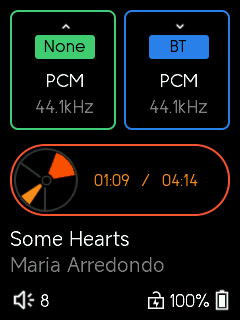
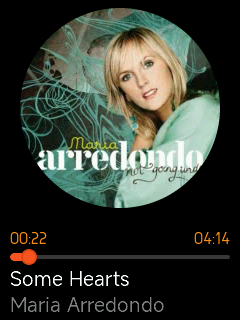
- Playback interface (Bluetooth mode only): Display album cover; Show playback progress; Display song title and artist.

- Setting interface Language/language, bluetooth, gain, channel balance, filter, equalizer, NOS, backlight settings, power follow, indicator light, USB microphone, album art display, screen rotation, factory reset, certificate, about.


6. Instructions for use
1. How to switch system language
Setting interface Click 语言/language , enter the language selection list.
Supports 13 languages (Simplified Chinese, Traditional Chinese, English, Japanese, 한국어, Français, Deutsch, Español, Italiano, ภาษาไทย, Polski, Pусский, Українська).
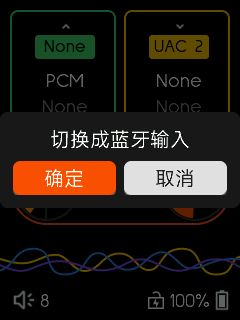
2. How to switch Bluetooth/UAC
Click the BT or UAC icon on the main interface.

3. How to set up Bluetooth
Long press the BT icon on the main interface or click the Bluetooth option in the settings interface.

4. How to play via Bluetooth connection
(1) Select Bluetooth mode on the main interface; (2) Search HiBy W4 on your mobile phone (or other Bluetooth transmitting device) for connection and pairing. After successful connection, you can use the music APP to play songs via Bluetooth; (3) If W4 has already been connected for Bluetooth pairing and needs to connect to a new Bluetooth device (if the connection is unsuccessful), you can first clear the pairing in W4's Bluetooth settings and then reconnect to the new Bluetooth device.
5. How to play via UAC connection
(1) Select UAC mode on the main interface (2) Use a USB Type-C cable to connect W4 to a computer/mobile phone and other devices to play songs.
6. How to switch UAC version
Long press the UAC icon on the main interface, and the UAC version setting list (1.0/2.0) will pop up.

7. How to perform NFC one-touch connection
(1) Turn on the NFC function on your mobile phone; (2) W4 (version 1.0) selects Bluetooth mode; (3) Place the phone close to the NFC tag area of the W4 device, wait for the pairing prompt box to pop up on the phone, and select pairing.
8. How to switch gain
Setting interface Click Gain Options (High, High, Low).

9. How to set the left and right channel balance
Setting interface Click channel balance Options (10 levels each on the left and right).

10. How to switch filter mode
Setting interface Click filter Options (Fast lowpass phase, Fast highpass phase, Slow lowpass phase, Slow highpass phase).

11. How to turn on the equalizer (EQ)
Setting interface Click equalizer Options (Rock, Pop, Classical, Jazz, Metal).

12. How to switch the album cover display mode
Setting interface Click Album cover display Options (square, circle, don't show).

13. How to adjust backlight parameters
Setting interface Click Backlight settings options.

14. How to turn on/off NOS
Setting interface Click NOS Switch options.
15. How to turn on/off the indicator light
Setting interface Click indicator light Switch options.
16. How to turn on/off the USB microphone function
Setting interface Click USB microphone Switch option, this option can turn off the USB call function with microphone.
17. How to rotate the screen 180 degrees
Setting interface Click screen rotation option to rotate the screen orientation in real time.
18. How to make W4 start and shut down following the vehicle
Setting interface Click power follow Switch options and select On.
19.How to restore W4 to factory settings
Setting interface Click Restore factory settings option, select OK, and wait for the machine to restore factory settings and automatically restart.

20. How to check the certification information obtained by W4
Setting interface Click Certificate option to view the certification information obtained by W4.
21. How to check W4 version information and serial number
Setting interface Click about option to view W4 software version information and serial number (SN).
22. The volume adjustment range is too small, how to solve it?
(1) Setting interface Click about After entering the interface, click the version number 5 times in succession.设置界面 will increase 开发者选项 ;
(2) Developer options Click Volume lock Switch options, select Off.


23. Turn off the screen and automatically shut down after a certain period of time without audio input.
After 5 minutes, an automatic shutdown prompt box will pop up and the device will shut down automatically.
6. Connecting equipment
Please use a cable with Type-C on at least one end to connect the decoder to the host device.
The host device can be a player, mobile phone, computer, tablet or dedicated digital broadcasting device.
Due to differences in players, mobile phones, tablet systems and hardware, some devices may have compatibility issues. In addition, some mobile phones may need to manually turn on the OTG function before they can be used normally.
Windows computer
Detailed instructions for use can be found inUSB DAC User Manual。
Windows computer, Windows system in Win7/Win8/Win10 1703 Previous version The UAC2.0 protocol is not supported on the computer, so the driver needs to be installed.
becauseWin7/Win8/Win10 1703 Previous versionThe UAC2.0 protocol is not supported, so please refer here to install the driver [TBD] to achieve a better experience.
Win10 1703 and later versions already have drivers, which can be used directly by connecting to USB. If you have any usage problems, you can go tohereCheck.
Win10 1703 and later versions can also install drivers, so that you can use ASIO drivers to achieve a better experience. For driver installation, you can also refer to [TBD].
Android player, mobile phone or tablet
Android players, mobile phones or tablets can be divided into exclusive methods and non-exclusive methods. You can also go to thehereCheck.
Simply plug the USB decoder into the USB port of your phone and use it.
If there is no response after plugging it in, you can enter the system settings to see if there is an OTG option to turn on the OTG support of the phone. In addition, you can also download Hiby Music and try the exclusive mode of Hiby Music. Otherwise, the mobile phone does not support it. Please contact the mobile phone manufacturer for confirmation.
Download and install Haibei Music (HiByMusic)
Enter Hiby Music -》Swipe right to open the settings option -》Settings -》Click Hiby Music Exclusive USB Output to turn on exclusive output
Plug the USB decoder directly into your phone
The phone will pop up "Allow HiBy Music to use HiBy W4", click Allow.
iPhone or iPad tablet
The system of iPhone mobile phone or iPad tablet is iOS.
iOS itself already has a driver, which can be used directly by connecting to USB. If you have any questions about using it, please go tohereCheck.
Apple Computer
Apple computer operating system is MacOS.
MacOS itself already has a driver, which can be used directly by connecting to USB. If you have any questions about use, you can go tohereCheck.
Linux distribution
Linux's support for USB DAC is determined by the kernel. Whether the kernel of different distributions turns on the USB sound card function is uncertain. For Linux distributions that do not support USB DAC, you can compile the kernel yourself to implement the USB sound card function. Or find a third-party application to support USB DAC function.
Detailed description
Detailed instructions for use can be found inUSB DAC User Manual。
7. Frequently Asked Questions
- Frequently asked questions can go hereCheck
8. Precautions
- This product is powered by USB and therefore consumes power from the host device (mobile phone, tablet or computer);
- Since the device uses a high-performance decoding chip, there will be a certain amount of heat during use, which is normal;
- Before plugging or unplugging headphones, it is recommended not to wear them to avoid possible instantaneous impact sounds;
- Before listening to music, it is recommended to adjust the volume of the device to a suitable position to avoid hearing damage caused by excessive volume;
9. Bluetooth cover support issues
-
iPhone/iPad series products all support cover display function and do not require special settings;
-
Android system phones have different compatibility issues. If you find that your phone does not support cover display, you can try the following:
- Open developer options; (usually enter Settings -> About phone -> Version information -> Software version number -> Click five times)
- Enter developer options and change the AVRCP version to 1.6
-
VIVO / iQoo:
- Open developer options: Settings -> About phone -> Version information -> Software version number -> Click five times
- Enter Developer Options: Settings -> System Management and Upgrades -> Developer Options
-
For a partial list of tested device support, refer tohere