HiByUSBMaster Android User Guide
See Downloads and platform support for downloads and other platforms. FC6II, W4 and BD100 support USB cover art or song information; W4 and BD100 require a firmware update.
HiByUSBMaster syncs music playback information from an Android phone or tablet to an external device that supports the HiBy USB HID media display protocol. Once you connect the device and grant access, it can display song titles, artists, albums, artwork, lyrics, and playback progress, depending on the features it supports.
1. Before you begin
You will need the following.
- Phone or tablet running Android 6.0 or later with OTG support.
- External device that supports the HiBy USB HID media display protocol.
- USB cable or adapter that connects the two devices and supports data transfer.
- Music app that shares playback information with Android.
HiByUSBMaster has no built-in music library. It displays and syncs the information your music app shares with Android. The song details, artwork, lyrics, and playback progress you see depend on both the information the music app provides and the features your external device supports.
2. Getting started
- Install and open HiByUSBMaster.
- Tap the gear icon in the upper-right corner of the home screen to open Permission settings.
- Enable Notification access and Allow notifications, then return to the app.
- To keep syncing when you lock the screen or switch apps, follow your phone’s instructions for Allow auto-start and background activity and Ignore battery optimization. You can also enable the optional Display over other apps permission.
- Connect a compatible external device using a USB data cable or adapter. If Android asks whether HiByUSBMaster can access the USB device, allow access.
- Open your music app and play a song. Return to HiByUSBMaster to see the song details and playback progress.
- Check that the external device displays the information. Try switching to another song and see whether the title, artwork, and progress update.
3. Using the home screen
The home screen shows playback information from your music app. Album artwork appears in the center as a circular record. Below it are the text supplied by the music app, the current playback position, and the total duration. The gear icon in the upper-right corner opens Permission settings.
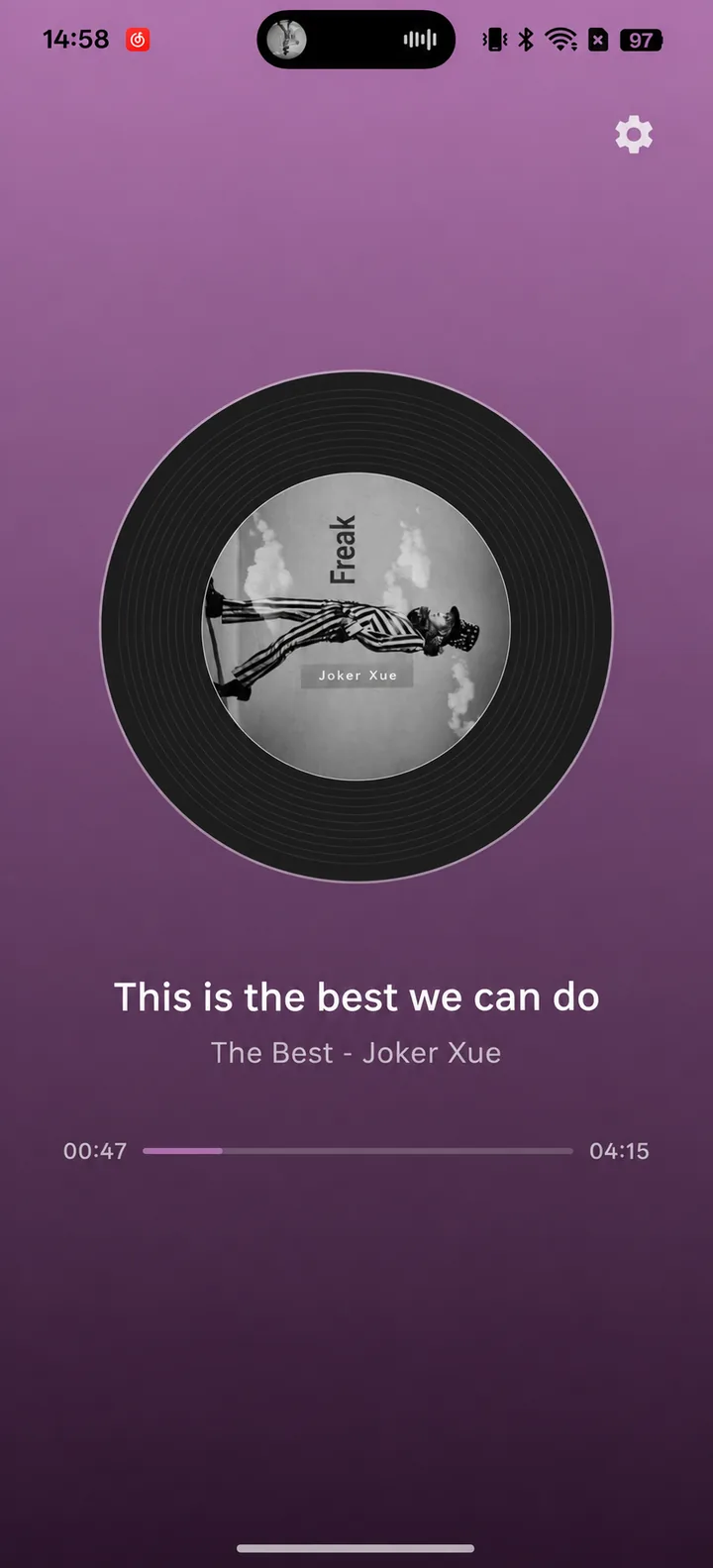
Figure 1. Example home screen. The song and artwork are shown for illustration. The text changes with the information supplied by the music app.
3.1 Viewing song details and artwork
Start playback in your music app, then open HiByUSBMaster to see what is playing. If the music app supplies no artwork, the home screen displays a default image.
3.2 Checking playback progress
The home screen shows the current playback position and total track duration. Both values come from the music app. If it supplies only part of this information, the display may be incomplete.
3.3 Opening Permission settings
Tap the gear icon in the upper-right corner. If song information is missing or syncing stops in the background, check the permissions and background settings here first.
4. Permission settings
This screen lists five settings. The label on the right of each row shows its status, such as Go to settings or Enabled. Tap a row and follow the instructions to open the relevant Android settings. Return to HiByUSBMaster to check the updated status.
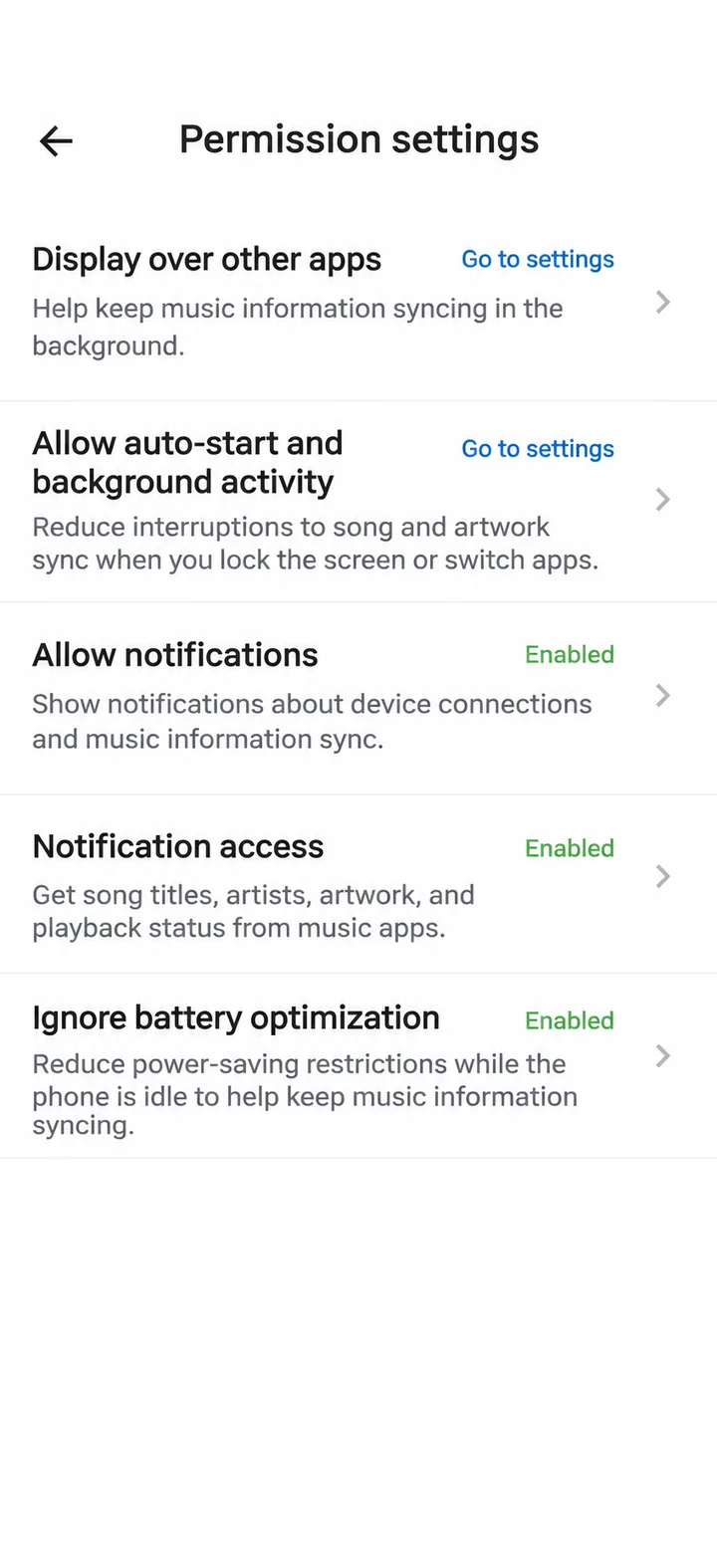
Figure 2. Permission settings. The labels show the permissions granted when the screenshot was taken. Check your own phone for its current status.
| Setting | What it does | When to use it |
|---|---|---|
| Display over other apps | Uses a small, invisible window to help keep music information syncing in the background. | Optional. Enable it if needed. |
| Allow auto-start and background activity | Helps prevent song and artwork syncing from stopping when you lock the screen or switch apps. | Follow the guide if you need continuous background syncing. |
| Allow notifications | Shows notifications about the device connection and music information sync. | Enable it when Android prompts you. |
| Notification access | Lets HiByUSBMaster read song titles, artists, artwork, and playback status from your music app. | Enable it before syncing music information. |
| Ignore battery optimization | Reduces power-saving restrictions while the phone is idle so that syncing can continue. | Follow the guide if you need continuous background syncing. |
4.1 Notification access
- In Permission settings, tap Notification access.
- Follow the guide to open Android’s notification access settings.
- Find HiByUSBMaster, grant notification access, and confirm when prompted.
- Return to the app and check that the status reads Enabled.
Notification access lets HiByUSBMaster read playback information from your music app. Allow notifications lets HiByUSBMaster show its own status notifications. Check each permission separately.
4.2 Allow notifications
Tap Allow notifications and grant permission when prompted. You can then check the notification shade for updates about the device connection and music information sync.
4.3 Allow auto-start and background activity
Tap Allow auto-start and background activity. Follow the guide to your phone’s settings, allow HiByUSBMaster to start automatically and run in the background, then return to the app.
The names and locations of these options vary by phone brand. Use the in-app guide as a reference and select the corresponding options on your phone.
4.4 Ignore battery optimization
Tap Ignore battery optimization. When prompted, allow HiByUSBMaster to ignore battery optimization or adjust the corresponding power-saving restriction, then return to the app.
This setting helps reduce background restrictions while the phone is idle. Background operation also depends on your Android version and your phone manufacturer’s power-management settings.
4.5 Display over other apps
This permission is optional. When enabled, HiByUSBMaster uses a small, invisible window to help keep songs and artwork syncing when you lock the screen or switch apps. The window displays no content and does not respond to taps.
- In Permission settings, tap Display over other apps to open the Setup guide.
- Read Why this permission is needed and How to enable it, then look at the demonstration.
- Tap Go to settings at the bottom of the page.
- In Android settings, find HiByUSBMaster and turn on Allow display over other apps or Floating windows, depending on your phone.
- Return to HiByUSBMaster. Background support will start.
To turn off background support, tap Stop support in the notification.
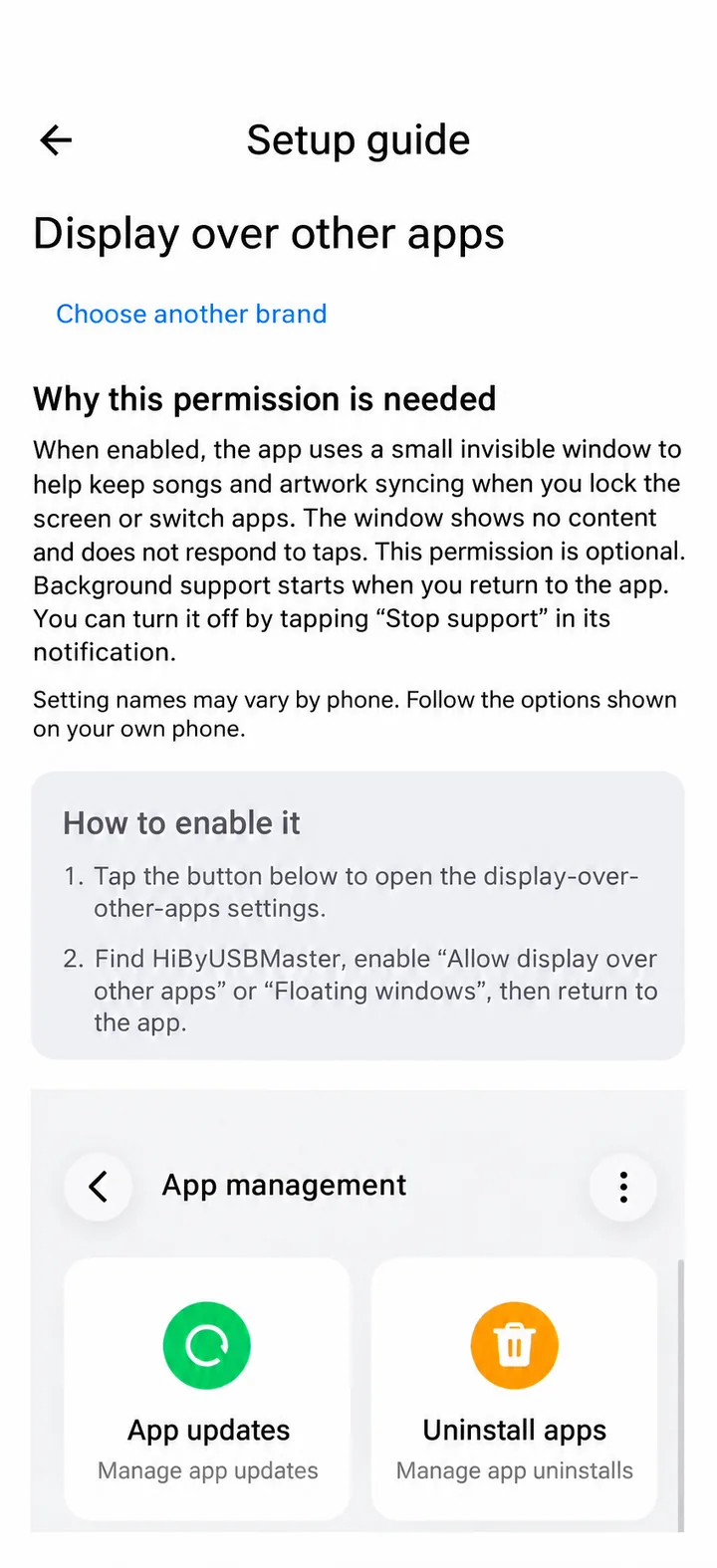
Figure 3. What the Display over other apps permission does and how to enable it.
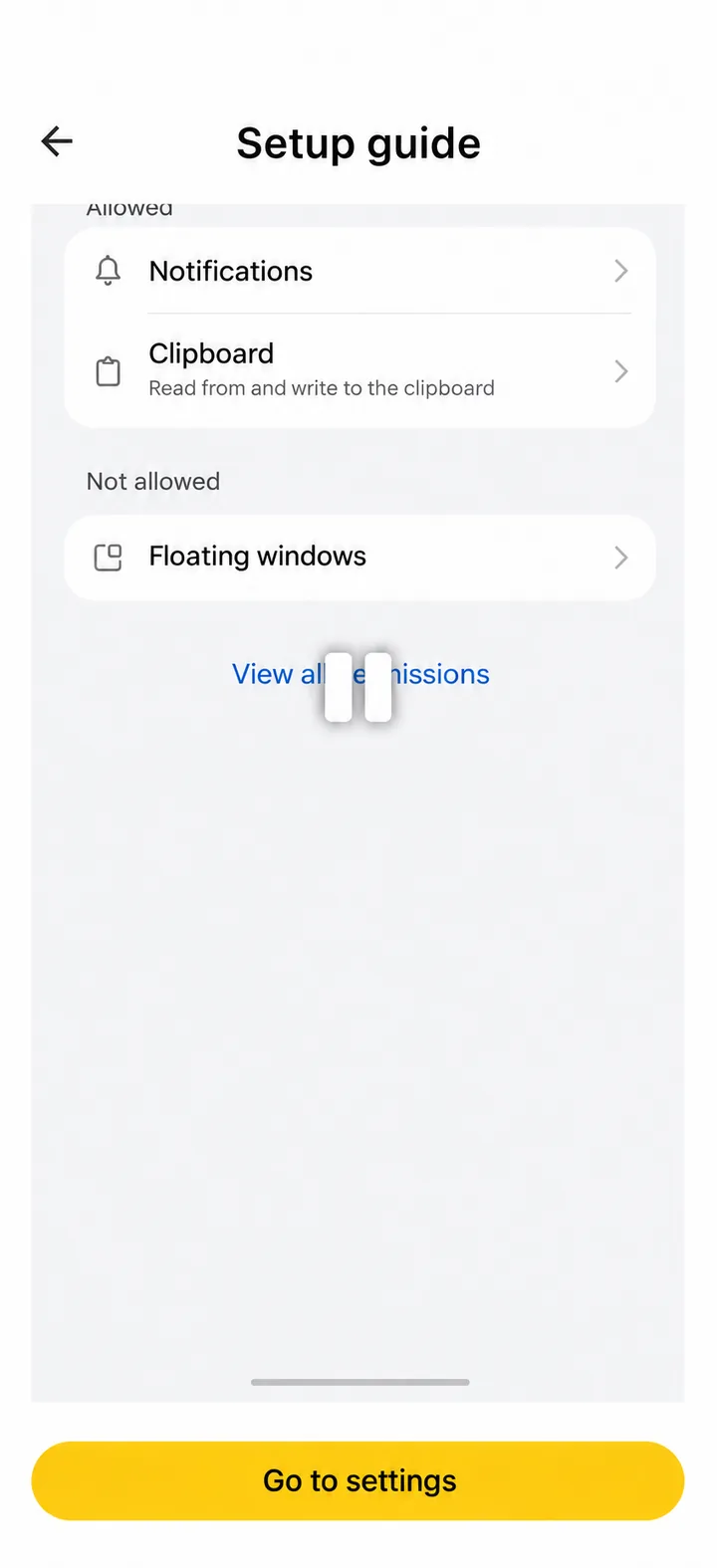
Figure 4. Scroll down to see the demonstration and the Go to settings button. The Android settings shown in the demonstration are examples. Follow the instructions for the permission you are enabling.
4.6 Choosing a reference brand
If the screens in the guide differ from those on your phone, you can change the reference brand.
- In the Setup guide, tap Choose another brand.
- In the Choose a reference brand dialog, select a brand with settings similar to those on your phone.
- Follow the instructions for the selected brand. To switch back to the guide for your own phone, tap Use this phone.
The screenshot shows Xiaomi / Redmi, HONOR, HUAWEI, OPPO, OnePlus, realme, and vivo / iQOO. The reference brand helps you find the setting. Use the options available on your own phone.
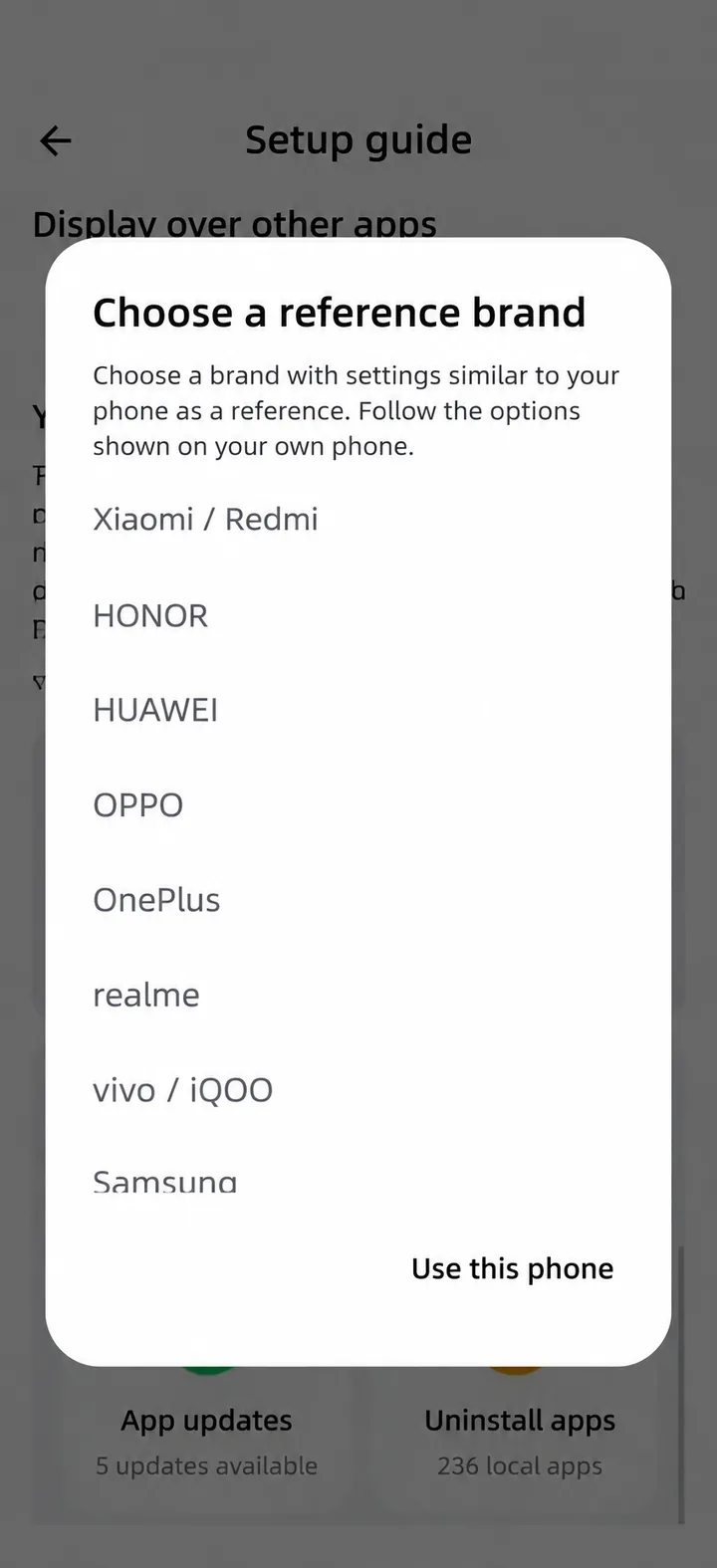
Figure 5. Choosing a reference brand.
5. Connecting a USB device
5.1 Connecting and granting access
- Connect a compatible external device to your phone using a USB data cable or adapter.
- If Android asks whether HiByUSBMaster can access the USB device, allow access.
- Play a song in your music app and check the information on both the HiByUSBMaster home screen and the external device.
Android grants USB access for the connected device. This permission is separate from the notification and background settings on the Permission settings screen. If you previously denied USB access, reconnect the device and grant access when prompted.
HiByUSBMaster checks which media information the external device can display and sends the corresponding data. A device with a USB or HID interface also needs to support the app’s media display protocol to use this feature.
5.2 Disconnecting and reconnecting
Unplugging the USB device ends the connection and stops syncing information to it. To resume, reconnect the device and grant access if Android prompts you again.
6. Syncing media information
| Content | What is required |
|---|---|
| Song title, artist, and album | The music app supplies the corresponding details, and the external device can display text. |
| Artwork | The music app supplies accessible artwork, and the external device can display images. |
| Playback status and progress | The music app supplies the playback state, position, and duration, and the external device can display them. |
| Lyrics | The music app supplies lyrics in a format HiByUSBMaster can read, and the external device can display the corresponding text. |
6.1 Everyday use
After granting access and connecting the device, play, pause, or change songs in your music app. HiByUSBMaster updates its display using the information it receives and syncs the supported content to the external device.
If you plan to lock the screen or switch apps, first follow the background setup instructions in Permission settings. If syncing stops, return to HiByUSBMaster to check the permissions and the device connection.
6.2 Displaying lyrics
When the music app supplies readable lyrics metadata, HiByUSBMaster can select the line for the current playback position. Otherwise, it shows the usual track information. A music app may display lyrics on its own screen without making them available to HiByUSBMaster.
6.3 Updating artwork and progress
HiByUSBMaster prepares the artwork according to the external device’s image capabilities and coordinates its transfer with playback progress updates. After switching songs, check that the artwork, text, and progress on the external device have updated.
7. Troubleshooting
7.1 No song information on the home screen
- Check that your music app is playing a song.
- Check that Notification access is enabled.
- Resume playback in the music app, then open HiByUSBMaster again.
- If song information is still missing, try another music app that shares playback information with Android.
7.2 The home screen shows song information, but the external device does not
- Check that the cable or adapter supports USB data transfer and is securely connected.
- Confirm that you granted HiByUSBMaster access to the USB device.
- Check that your phone supports OTG and that the external device supports both the HiBy USB HID media display protocol and the information you want it to display.
- Reconnect the device, grant access when prompted, and play a song again.
7.3 Syncing stops when you lock the screen or switch apps
- Check Allow auto-start and background activity.
- Check Ignore battery optimization.
- If needed, follow the guide to enable the optional Display over other apps permission.
- Return to the app, resume playback, and check whether syncing resumes.
Background syncing can vary with the phone’s operating system and power-saving settings.
7.4 Artwork or lyrics are missing
Check whether the home screen receives the relevant information, then confirm that the external device can display it. To sync artwork or lyrics, HiByUSBMaster needs the music app to supply an accessible image or readable lyrics data.
7.5 The Android settings screen differs from the guide
In the Setup guide, tap Choose another brand and select a brand with settings similar to those on your phone, or tap Use this phone. Enable the permission using the name shown on your phone.
7.6 How do I turn off background support?
Tap Stop support in the HiByUSBMaster notification. To also revoke the overlay permission, open your phone’s settings for HiByUSBMaster and turn off Allow display over other apps or Floating windows.