HiBy BD100 Digital Audio Decoder User Manual
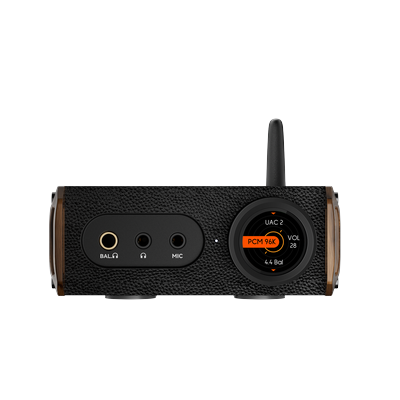
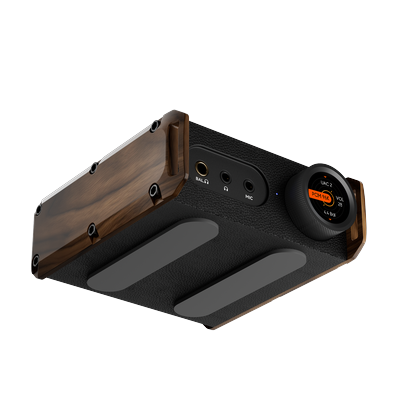
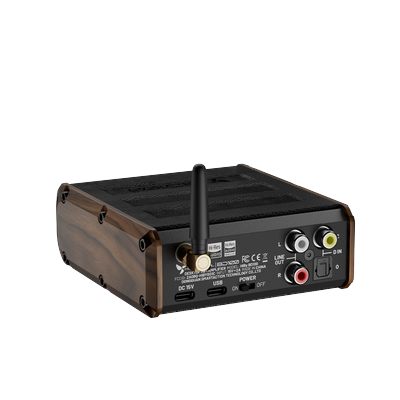
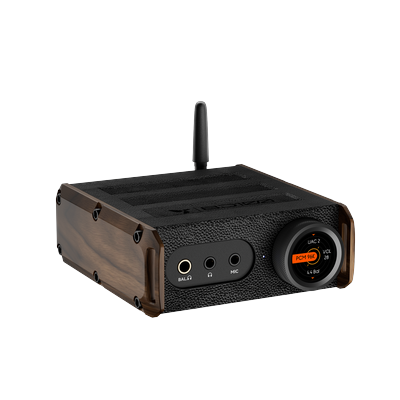
1. Product Appearance
1. Appearance
- From left to right, the front panel provides: 4.4 mm balanced headphone output, 3.5 mm single-ended headphone output, 3.5 mm microphone input, color display, and multi-function knob.
- The rear panel provides: DC 9V USB-C power input, USB-C data port, power switch, Bluetooth antenna connector, RCA left/right line outputs, optical input, and coaxial input.
2. Quick Start
- Install the Bluetooth antenna onto the antenna connector on the rear of the unit.
- Connect a compliant DC 9V power supply to the “DC 9V” port. Do not connect the power cable to the adjacent USB data port.
- Lower the volume first, then connect headphones or an RCA downstream device.
- Turn on the rear power switch and wait for the device to start up.
- Press the knob to enter Settings, then select UAC 1, UAC 2, Bluetooth, Coaxial, or Optical under “Input”.
- After playback starts, rotate the knob to adjust the volume.
3. Controls and Ports
3.1 Multi-function Knob
| Operation | Function |
|---|---|
| Rotate on main screen | Adjust volume |
| Rotate in menu | Move through options |
| Press | Enter Settings, confirm current option |
| Select “Back” and press | Return to previous level or main screen |
3.2 Ports
| Port | Type | Purpose and Notes |
|---|---|---|
| DC 9V | USB-C-shaped power input | Power only; connect a matched power supply according to the unit labeling |
| USB | USB-C data port | Connect to a computer, phone, or other USB Audio host |
| COAX | RCA coaxial digital input | Connect to coaxial digital audio output devices |
| OPTICAL | TOSLINK optical digital input | Connect to optical digital audio output devices |
| RCA L/R | Analog line output | Connect to active speakers, headphone amplifier, or downstream device |
| 3.5 mm PO | Single-ended headphone output | Supports ordinary 3-pole headphone plugs and CTIA 4-pole headphone plugs; does not support inline remote buttons or headphone calls |
| 4.4 mm BAL | Balanced headphone output | Connect to 4.4 mm balanced headphones |
| 3.5 mm MIC input | Microphone input | Connect an external microphone for USB audio recording |
- Note: The DC 9V power port and USB data port have the same shape but different purposes. Confirm the unit labeling before connecting.
4. Interface Overview
BD100 uses a 160 × 160 color display. The main interface displays the input mode, volume, output port, audio format, or Bluetooth song information according to the current input and playback status.
4.1 USB Audio Interface

- The top displays the current UAC version.
- The middle displays the current audio format and sample rate; it displays a stopped state when no valid audio is received.
- The right side displays the volume, and the bottom displays the current output port.
4.2 Bluetooth Playback Interface

- Can display song title, artist, and current Bluetooth codec.
- The outer orange progress bar shows the current playback progress.
- When album art display is enabled, compatible phones and players can send album art; the interface uses the cover image as the background.
- Whether song information, album art, and progress are available depends on whether the phone, player, and Bluetooth protocol provide the corresponding data.
4.3 Coaxial Input Interface

- The top displays COAX, indicating that coaxial digital input is currently in use.
- The middle displays the current audio format and sample rate; the screenshot shows PCM 44.1 kHz.
- The right side displays the volume, and the bottom displays the current output port.
4.4 Optical Input Interface

- The top displays OPTICAL, indicating that optical digital input is currently in use.
- The middle displays the current audio format and sample rate; the screenshot shows PCM 44.1 kHz.
- The right side displays the volume, and the bottom displays the current output port.
4.5 Settings Interface

Rotate the knob to select an item, and press the knob to confirm. The screenshots are used to illustrate operation. The actual display language depends on the device’s current settings.
5. Input Modes and Connections

After entering “Settings > Input”, rotate the knob to switch between UAC 1, UAC 2, Bluetooth, Coaxial, or Optical, and press the knob to confirm. The orange area indicates the currently selected input mode.
5.1 UAC 1 / UAC 2
- Use a USB data cable to connect the BD100 rear USB data port and the playback device.
- Select UAC 1 or UAC 2 in “Settings > Input”.
- Select BD100 as the audio output device in the computer, phone, or playback software.
Windows
- Connect BD100 to the computer and wait for the system to recognize the device.
- In Windows sound settings, select BD100 as the output device.
- For exclusive output or ASIO, configure according to the official driver and playback software instructions. If the system cannot recognize UAC 2, first switch to UAC 1 to verify the connection, then check the system version, data cable, and driver.
Android Phone or Tablet
- Use a USB-C cable that supports data transfer to connect BD100.
- If the system prompts to access the USB audio device, select Allow.
- If there is no response after connection, check whether the phone requires manually enabling OTG.
When avoiding system mixing, use a playback app that supports USB exclusive output. Whether OTG, exclusive output, and high sample rates are supported depends on the phone and system.
iPhone / iPad
Use a cable or adapter that matches the device port and supports USB data transfer to connect BD100. If the system prompts that accessory power is insufficient, confirm that BD100 is properly powered through the independent DC 9V port, and replace it with a suitable data connection accessory.
macOS
After connection, select BD100 in “System Settings > Sound” or “Audio MIDI Setup”. Set the sample rate as needed, or let the playback software switch automatically.
Linux
Linux USB Audio support depends on the kernel, sound service, and distribution configuration. After connection, select BD100 in the system audio settings; if it does not appear, check whether the USB Audio class driver is enabled.
5.2 Bluetooth

Rotate the knob to select “Pair” or “Clear Pairing”, and press the knob to execute. The orange border in the screenshot indicates that “Pair” is currently selected.
First Pairing
- Install the Bluetooth antenna, and select “Bluetooth” in “Settings > Input”.
- Enter “Settings > Bluetooth > Pair”.
- Enable Bluetooth on the phone or computer, then search for and select “HiByBD100”.
- Start playing audio after a successful connection.
BD100 automatically negotiates the available Bluetooth codec with the playback device. The current interface can recognize SBC, AAC, LDAC, aptX, aptX HD, aptX Adaptive, and other codecs; the codec actually used is determined by compatibility between both sides and the playback device settings.
Clear Pairing Records
If you cannot reconnect or need to change the main playback device, enter “Settings > Bluetooth > Clear Pairing”, confirm, and then pair again. This operation deletes the Bluetooth pairing information saved in BD100.
5.3 Coaxial / Optical
- Connect the digital audio source to the COAX or OPTICAL input.
- Select the corresponding mode in “Settings > Input”.
- Set the front-end device’s digital output to a format supported by BD100, then start playback.
Coaxial and optical PCM input specifications are up to 192 kHz / 24 bit. The current firmware includes SPDIF DSD64 processing; whether it can be used normally still depends on the front-end device’s output method and signal compatibility.
6. Settings Items
| Setting | Description |
|---|---|
| Language | Supports Simplified Chinese, Traditional Chinese, English, Japanese, Korean, French, German, Spanish, Italian, Polish, Russian, Ukrainian |
| Input Selection | UAC 1, UAC 2, Bluetooth, Coaxial, or Optical |
| Bluetooth | Enter pairing or clear saved pairing records |
| Gain | Select Low, Medium, or High gain; it is recommended to start with low gain and low volume |
| Balance | Adjust left/right channel balance |
| Digital Filter | Options include Fast/Slow roll-off, Low latency/Phase compensation, and NOS mode |
| EQ | Options include Off, Rock, Pop, Classical, Jazz, Metal, and Custom |
| DRE | This feature is not enabled in the current product firmware; even if it is displayed in the menu, it should not be treated as an available function |
| Album Art Display | Turn Bluetooth song album art display on or off; changing this item may affect image quality and interface refresh speed |
| Factory Reset | Restore default configuration, clears user settings; please confirm carefully |
| Certifications | View device certification information |
| About | View product and firmware information |
7. Output and Volume

The bottom of the playback interface displays the currently detected output type; the image above shows 4.4 mm balanced headphone output.
- After inserting 3.5 mm headphones or 4.4 mm balanced headphones, the interface displays the detected output type.
- RCA is line output; before connecting active speakers or a downstream device, lower the downstream volume first.
- Before switching headphones, output ports, or gain, lower the volume first to avoid sudden high volume causing hearing or device damage.
- Do not use an adapter to directly convert 4.4 mm balanced output to common-ground single-ended output.
8. Album Art and Song Information
The BD100 Bluetooth playback interface can receive and display song title, artist, total duration, current progress, and album art. This data is actively provided by the Bluetooth playback device, not recognized by BD100 from the audio stream itself.
If album art or progress is not displayed, check in order:
- Whether “Album Art Display” is enabled.
- Whether the phone system and player allow media information to be provided via Bluetooth.
- Whether the current song contains title, artist, and album art metadata.
- Pause and resume playback, or disconnect and reconnect Bluetooth.
Apple iPhone and iPad usually provide album art information without additional settings. Android devices are affected by the system and vendor customization. If album art never displays, try setting the Bluetooth AVRCP version to 1.6 in the phone’s “Developer options”, then delete the original pairing record and reconnect. Menu paths differ by phone; before modifying, it is recommended to record the original settings.
Some phones, players, or online streaming apps may provide only partial information. This does not affect audio playback.
9. Specifications Summary
| Item | Specification |
|---|---|
| Display | 0.75 inch, 160 × 160 pixels |
| USB Audio | UAC 1 / UAC 2; up to PCM 768 kHz / 32 bit, DSD512 Native, DoP DSD256 |
| Coaxial / Optical | PCM up to 192 kHz / 24 bit |
| Bluetooth | Bluetooth 5.4 |
| Analog Outputs | 3.5 mm PO, 4.4 mm BAL, RCA L/R |
| 3.5 mm PO Output | No-load max approx. 3 Vrms; approx. 281 mW at 32 Ω load |
| 4.4 mm BAL Output | No-load max approx. 6 Vrms; approx. 1087 mW at 32 Ω load |
| RCA Line Output | Approx. 2 Vrms |
| Microphone Input | 3.5 mm MIC |
| Power | DC 9V, USB-C power input |
| Dimensions | Approx. 116.8 × 100.6 × 39.7 mm |
| Weight | Aluminum alloy version approx. 302.5 g; walnut version approx. 242 g |
* Actual support and achievable specifications are affected by product version, firmware, host, driver, connection method, and playback software.
10. Package Contents
The package usually includes:
- BD100 unit
- USB-C to USB-C data cable
- DC 9V power adapter
- External microphone
- Bluetooth antenna
- Product manual, warranty certificate, and conformity certificate
Accessories may vary by region and product batch; please refer to the actual package and sales page.
11. FAQ
No Sound After Power-on
- Confirm that the current input mode matches the actual connection.
- Confirm that the playback device has selected BD100 as the audio output.
- Check whether the headphones or RCA cables are firmly plugged in, and confirm that the interface displays the correct output type.
- Start from low volume and slowly increase it.
- In UAC mode, try switching between UAC 1 and UAC 2.
Bluetooth Cannot Be Found or Cannot Connect
- Confirm that the antenna is installed and that the current input is switched to Bluetooth.
- Re-enter pairing state in the Bluetooth menu.
- Temporarily turn off Bluetooth on nearby paired devices to avoid BD100 being automatically connected.
- If necessary, clear the old pairing records on BD100 and the playback device, then pair again.
No Sound from Coaxial or Optical
- Confirm that the front-end device has enabled the corresponding digital output.
- First set the front-end to a common PCM format (for example, 44.1 kHz or 48 kHz) for testing.
- Confirm that no multichannel compressed bitstream that BD100 cannot decode is being output.
Displayed Format or Sample Rate Does Not Match Expectations
The display shows the signal BD100 actually receives. Check the playback software output mode, system mixing settings, driver, and source format. After stopping playback, the interface should not treat the old sample rate as the current playback signal.
12. Safety and Maintenance
- Only use a power supply that meets the product labeling requirements; do not connect non-power devices to the DC 9V port.
- Place the device on a ventilated, stable, dry surface, away from liquids, high temperatures, strong magnetic fields, and open flames.
- Do not cover the device, do not use it in humid environments, and do not let metal or liquid enter the openings.
- When not used for a long time, turn off the power switch and disconnect the power.
- Before cleaning, power off and disconnect the device; wipe it with a soft dry cloth; do not use solvents or corrosive cleaners.
- To protect hearing, avoid listening at high volume for long periods.
- Do not disassemble the device yourself. If the device overheats abnormally, gets wet, emits odor, or fails to work normally, immediately disconnect the power and contact after-sales service.