HiBy FC4 Screen Version Manual
Welcome to the products under HiBy Music
Thank you for purchasing the USB HD lossless audio decoder launched by HiBy Music. In order to enhance your experience with the FC4 screen version, this article introduces its common functions and operation methods, hoping to help you gain a more comprehensive understanding and use of the FC screen version.
Meanwhile, you are also welcome to visit the official website of HiBy Music at www.hiby.com to learn more about HiBy Music's products and make purchases.
I. Product Introduction
- Based on Haibei's self-developed USB audio system
- Adopting a dual CS43131 decoding architecture, it supports up to DSD512 and PCM 768kHz decoding
- Supports PhoneOut (PO) and Balance analog audio output
- Supports nine preset equalizers: Pop, Classical, Dynamic, Jazz, R&B, Metal, Vocal, Bass, and Treble
- Support for custom PEQ: USRE (via HiByUSBMaster OR HiByMusic)
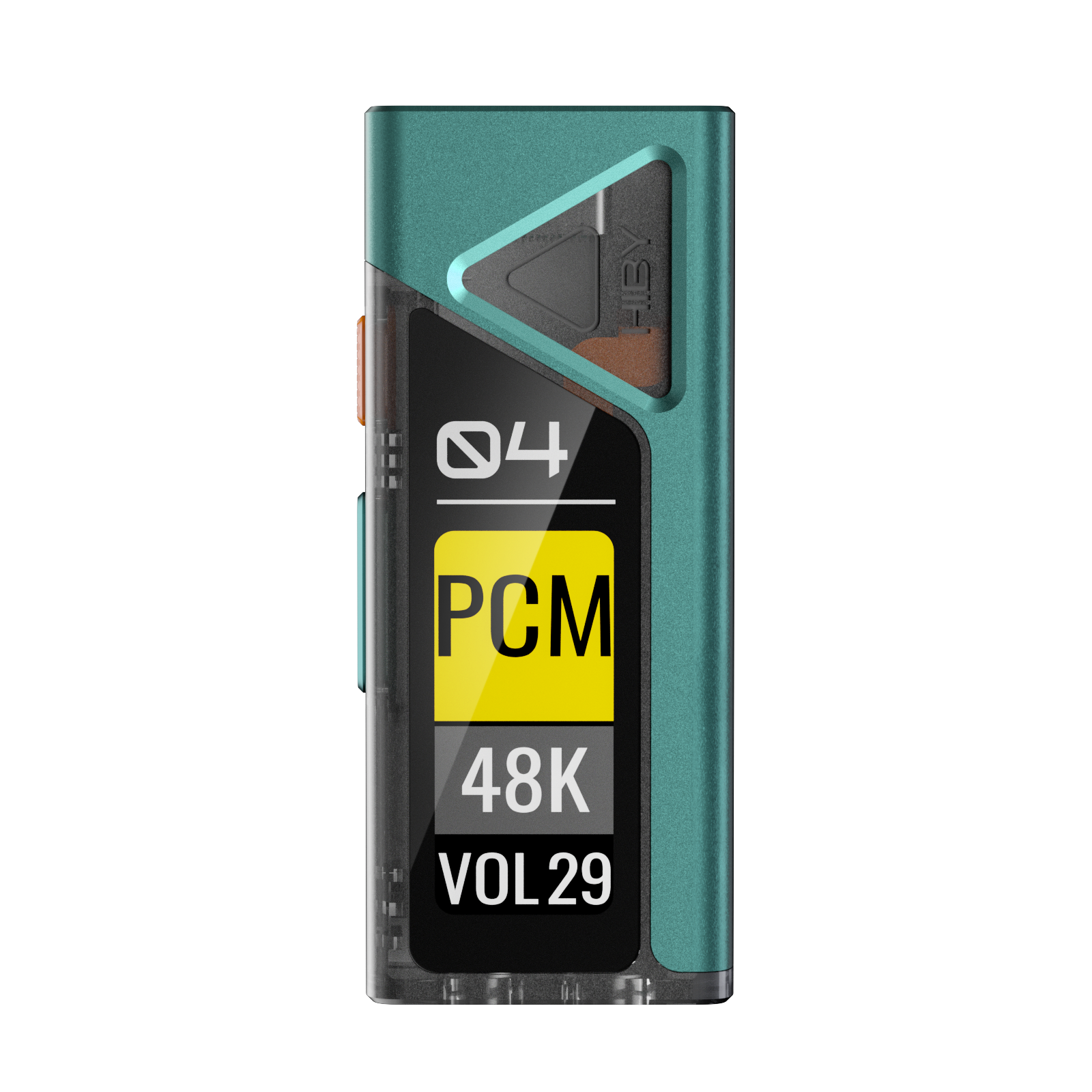
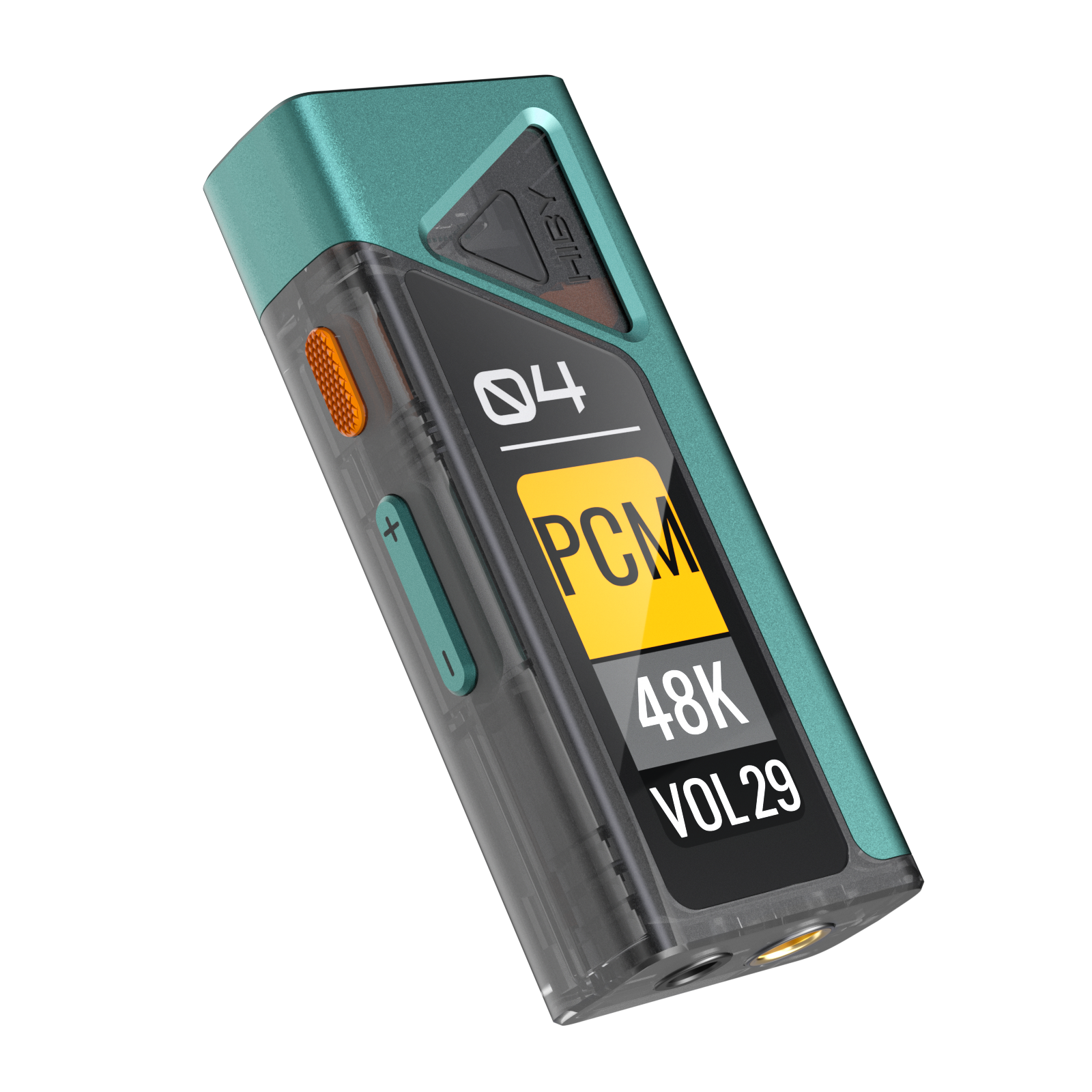
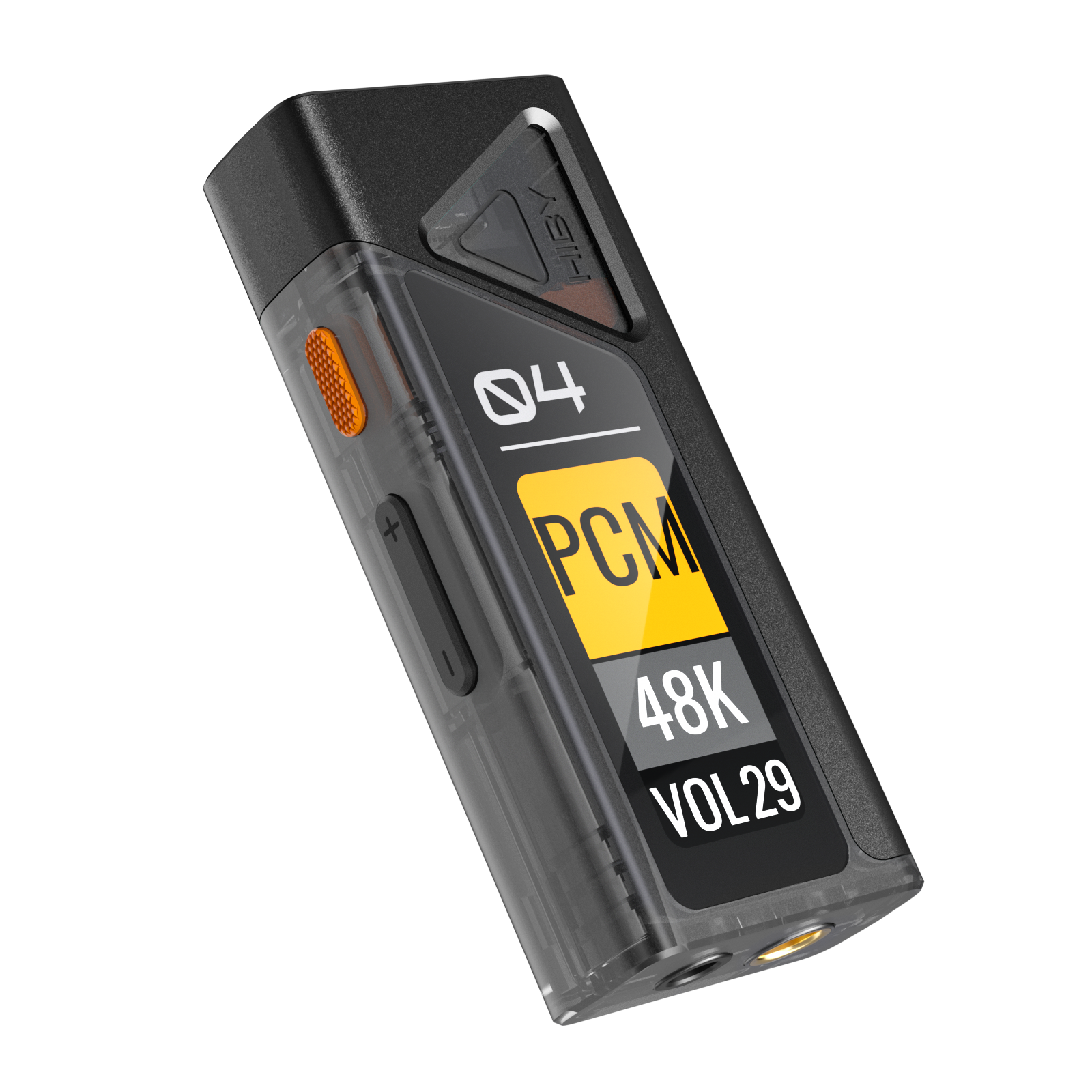
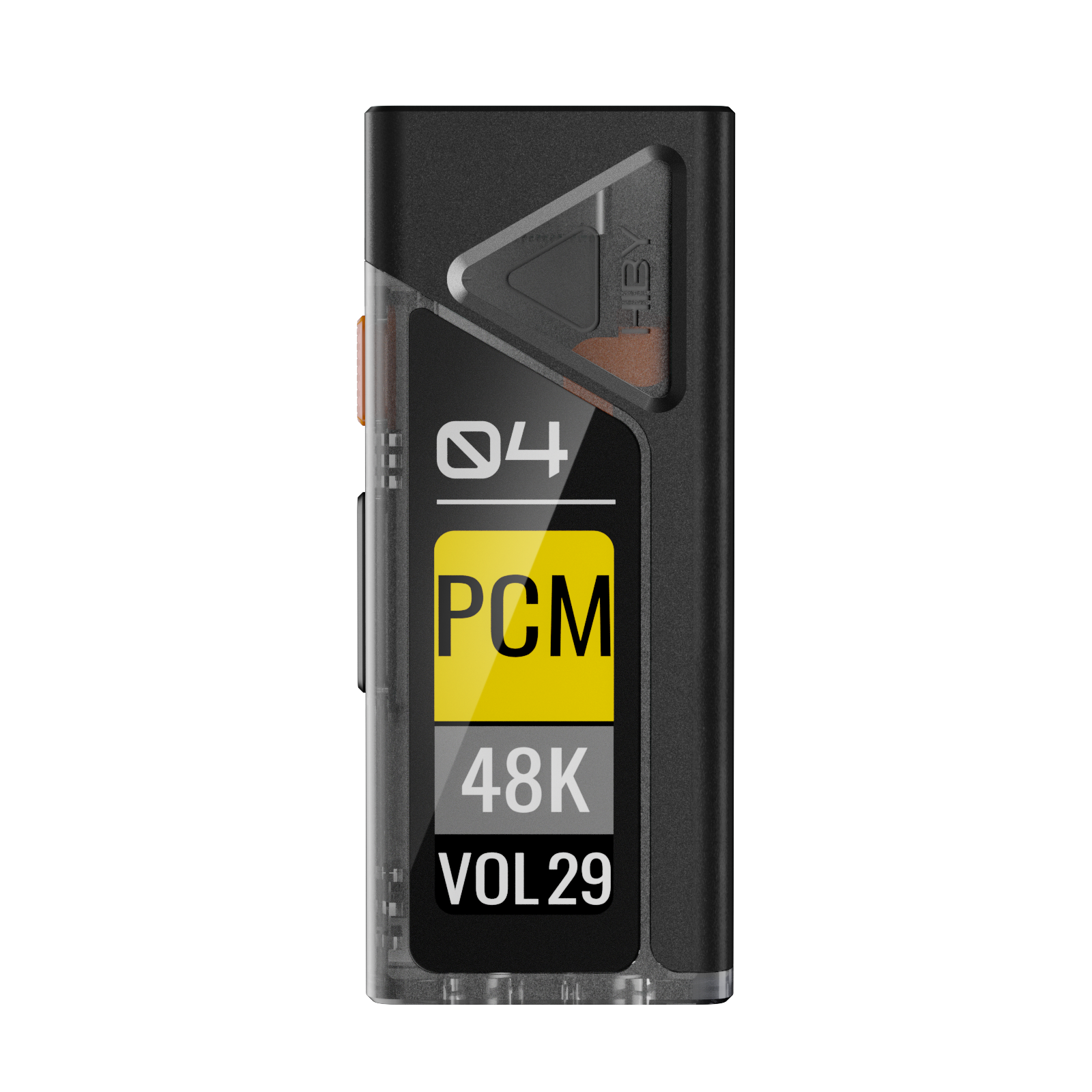
Using the front view of the decoder as a reference:
- From top to bottom on the left side are: function keys, volume up, and volume down
- The top is: Type-C
- From left to right at the bottom are: PO, BAL
- From top to bottom on the front side, there are: a triangular transparent window (HIBY Logo), a 04 logo, and a display screen
Scenario Video
II. Key Usage Instructions
Take the front view of the decoder as a reference:
- From top to bottom on the left side are: function keys, volume up, and volume down
| Key | Function |
|---|---|
| Function key | When screen is off, short press: turn on screen; when screen is on, short press: switch functions |
| Volume Up | Short press on the volume interface: increase volume; other interfaces: toggle options up and down |
| Volume Down | Short press in the volume interface: decrease volume; in other interfaces: toggle options up and down; press and hold when not plugged in: enter UAC1 mode |
III. Interface Usage Instructions
The following introduction is based on the front view of the decoder screen as a reference:
- The top is: Type-C
- From left to right at the bottom are: PO, BAL
Audio output interface
The audio output interface can be used by different audio devices, such as headphones with a 3.5mm interface, headphones with a 4.4mm balanced interface, and other devices.
- PO: 3.5mm single-ended headphone output
- BAL: Headphone output with a 4.4mm balanced connector
USB Interface
The physical interface used by the USB port is a Type-C interface.
IV. UI Introduction
Main interface (volume control interface)
Insert FC4, and after FC4 is powered on, the main interface is as shown in the figure:
- The top displays the playback format: HIBY Logo, PCM, DSD, MQA
- The middle part is for the sampling rate
- The bottom indicates the current volume. On the current interface, you can adjust the volume by using the volume up and down buttons
- The bottom right corner will indicate whether the current output port is PO or BAL

When playing a song, the main interface is as shown in the figure below (the lower figure shows playing MQA):
- The top section displays the playback formats: HIBY Logo, PCM, DSD, MQA
- The middle part is the sampling rate
- The bottom displays the current volume. On the current interface, you can adjust the volume by pressing the volume up or down buttons
- The bottom right corner will indicate whether the current output port is PO or BAL

GAIN
The GAIN interface is shown in the figure below:
- The top part reads "GAIN"
- The bottom is the current GAIN level

Filter
The Filter interface is shown in the figure below:
- The top part reads "Filter"
- The bottom part indicates the current Filter level

EQ
The EQ interface is shown in the figure:
- The top part bears the letters EQ
- The bottom is the current EQ

How to customize EQ?
Windows / MacOS
Please download the HiByUSBMaster tool, and after installation, you can use the tool to set up PEQ Download link
Android
Please download the latest version of HiByMusic, and after installation, you can use the tool to set up PEQ Download link
V. Instructions for Use
Connecting devices
Please use a cable with at least one Type-C end to connect the decoder and the host device.
The host device can be a player, mobile phone, computer, tablet, or a dedicated digital broadcast device.
Due to differences in player, phone, tablet systems, and hardware, some devices may encounter compatibility issues. Additionally, some phones may require manual activation of the OTG function for normal use.
Windows computers
For detailed instructions, please refer to the "USB DAC User Guide".
For Windows computers, the Windows system does not support the UAC2.0 protocol on versions earlier than Win7/Win8/Win10 1703, so a driver needs to be installed.
As versions of Win7/Win8/Win10 prior to 1703 do not support the UAC2.0 protocol, please refer to this link for driver installation [TBD] to achieve a better experience.
The versions after Win10 1703 come with the driver already installed, so you can directly connect it via USB and start using it. If you encounter any issues, you can refer to this link for solutions.
Drivers can also be installed on Windows 10 versions later than 1703, allowing the use of ASIO drivers for a better experience. For information on driver installation, please refer to [TBD].
Android player, mobile phone, or tablet
Android players, phones, or tablets can be categorized into exclusive and non-exclusive modes. For usage inquiries, please refer to here.
Simply plug the USB decoder into the USB port of your phone and use it.
If there is no response after insertion, you can enter the system settings to check if there is an OTG option to enable OTG support on your phone. Alternatively, you can download Haibei Music and try its exclusive mode. If it still doesn't work, it may be that your phone does not support it. Please contact the phone manufacturer for confirmation.
Download and install HiBy Music (HiByMusic) Enter Haibei Music -》Swipe right to open the settings option -》Settings -》Click on "Haibei Music Exclusive USB Output" to enable exclusive output Insert the USB decoder directly into the phone The phone will pop up with "Allow HiBy Music to access HiBy FC5", just click "Allow"
iPhone or iPad
The operating system of both iPhone and iPad is iOS.
iOS comes with built-in drivers, so you can simply connect it via USB and start using it. If you encounter any issues, you can refer to this page for solutions.
Apple computer
The operating system of Apple computers is MacOS.
MacOS comes with built-in drivers, so you can simply plug it in via USB and start using it. If you encounter any issues, you can refer to this page for solutions.
Linux distributions
Linux's support for USB DACs is determined by the kernel. It is uncertain whether the USB sound card function is enabled in different distributions' kernels. For Linux distributions that do not support USB DACs, users can compile the kernel themselves to enable the USB sound card function. Alternatively, they can seek third-party applications to support the USB DAC function.
Detailed Explanation
For detailed instructions, please refer to the "USB DAC User Guide".
VI. Common Problems
- For frequently asked questions, please refer to this link
VII. Precautions
- This product is powered by USB, and therefore, it will consume the battery life of the host device (such as a phone, tablet, or computer);
- Due to the use of a high-performance decoding chip in the device, it is normal for it to generate some heat during use;
- Before plugging in or unplugging the headphones, it is recommended not to wear them to avoid any possible instantaneous impact sound;
- Before listening to music, it is recommended to adjust the volume of the device to an appropriate level to avoid hearing damage caused by excessive volume;