HiBy R2II User Manual
Welcome to use HiBy's products
Thank you for purchasing the portable high-definition lossless music player R2II, launched by HiBy. In order to make R2II give you a better experience, this article introduces the common functions and operating methods of R2II, hoping to help you understand and use R2II more comprehensively.
At the same time, you are also welcome to log in to the official website of HiBy at https://store.hiby.com/ to learn more about HiBy product information and purchase related products.
R2II Product Picture
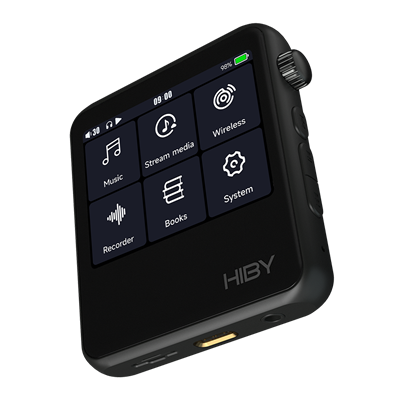
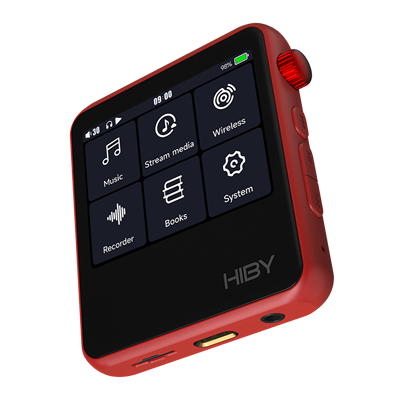
1. Product introduction
- Based on HiBy OS (Linux 3.10.14) system, the Junzheng X1000E main control is adopted
- Adopt ESS9219C architecture, up to support DSD256\PCM384kHz decoding
- Supports analog outputs such as 3.5mm PhoneOut(PO)
- Supports coaxial (S/PDIF) output
- Supports Bluetooth audio output (supports UAT, LDAC, aptX, AAC, SBC, etc. encoding)
- Supports USB audio output
- Supports external MicroSD(TF) cards up to 2TB
- Supports Bluetooth 5.0 and 2.4G WiFi
- Support local playback, AirPlay, DLNA, network radio, etc.
- Supports inputs such as Bluetooth, USB Audio, etc.
- Support double-microphone recording
The following introduction is the front view of the player screen as reference:
- The top is from left to right: microphone hole, power button (LED indicator)
- From top to bottom on the right are: volume knob, previous song, playback pause, next song, microphone hole
- The bottom is from left to right: MicroSD (TF) card slot, Type-C, PO
2. Button usage instructions
The following introduction is the front view of the player screen as reference:
- The top is from left to right: microphone hole, power button (LED indicator)
- From top to bottom on the right are: volume knob, previous song, playback pause, next song, microphone hole
| Button | Function |
|---|---|
| Power button | Short press: Turn on and off; long press for more than 10s: Hardware reset |
| Volume Knob | Increase Volume\Down Volume |
| Previous song | Short note: Previous song |
| Play Pause | Short button: Play Pause |
| Next song | Short button: Next song |
| Press and hold the next song to turn on | Used to enter the burn mode, mainly for production |
| Press and hold the previous song to power on | Use it to force the upgrade mode, see the specific operationupgrade mode |
- Make sure there is a MicroSD(TF) card inserted
- Make sure there is an upt file for upgrade in the inserted MicroSD(TF) card
- The system detects the upgrade file and will automatically upgrade it.
- If the above configuration is not available, you need to force exit the upgrade mode, and restart the device by power button 10s
3. Interface usage instructions
The following introduction is the front view of the player screen as reference:
- The bottom is from left to right: MicroSD (TF) card slot, Type-C, PO
Audio output interface
The audio output interface can be provided to different audio devices for use, such as headphones with 3.5mm interface, etc.
- LO: 3.5mm single-ended headphone output
- PO: 3.5mm single-ended interface headphone output
USB port
The physical interface used by the USB interface is the Type-C interface, through which the following functions can be provided.
The player allows USB to work in two different modes:USB OTGandUSB Device。
When the player asUSB OTGWhen using it (can be understood as USB on the computer):
- Connecting a USB or mobile hard drive: Read data from a USB or mobile hard drive;
- Connect to a USB decoder or USB small tail: output high-definition audio data;
Charging interface
The physical interface used by the charging interface is the Type-C interface, through which the charger can be connected to the charger.
- Charging supports ordinary charging heads, which can reach a charging current of 5V@1A.
MicroSD(TF) card interface
The MicroSD(TF) card interface is used to insert a MicroSD(TF) card, mainly to expand storage capacity. The HiBy player can support MicroSD(TF) cards up to 2TB, and the player supports file systems including FAT32\exFAT\NTFS.
LED Indicator
| Status | Color |
|---|---|
| Normal | Red ■ |
| Charging | Red breathing effect (normal)■ |
| PCM(~48k) | Yellow■ |
| PCM(88.2k~192k) | Cyan■ |
| PCM(352.8k~) | Orange■ |
| DSD | White ■ |
| MQA | Green■ |
| MQA Studio | Blue■ |
| MQA Core (MQB) | Magenta■ |
4. Get started
Since the player does not have storage itself, the user needs to prepare a MicroSD(TF) card, or you can purchase a package product with a MicroSD(TF) card.
First boot
- Press and hold the boot key for 2s, and the player enters the boot state
- After the startup animation is completed, the system enters the boot settings interface
- Select the corresponding language
- Complete the setup
- The first startup is completed
Status bar
At the top is some information in the status bar, showing some common system information.
-
Volume value Displays the volume value of the current output port.
-
Output port status LineOut PhoneOut Coax
-
Play status If it is currently in playback, the playback status or the pause status will be displayed, otherwise it will not be displayed.
-
time Show current time
-
HiByLink Status Information Showcases HiByLink connection information.
-
Bluetooth status information Displays Bluetooth information, including signal strength, connection status, etc.
-
WiFi status information Displays WiFi information, including signal strength, connection status, etc.
-
Battery level information Displays battery icon, charging status, percentage and other information. Power percentage switch: Settings -》 Battery -》 Battery percentage.
Main interface
Introduce the relevant functions of the main interface and some common operations. The main interface contains a series of entrances to quickly use related functions.
-
Swipe left Quickly enter the playback interface.
-
Swipe from outside the screen Enter the quick operation interface.
- music
- Streaming media
- wireless
- recorder
- E-book
- System
Quick operation
- Pull down from outside the screen to enter the quick operation interface.
- Follow the following operations: System -》 Shortcut menu, you can enter the shortcut menu setting interface
- Modify quick operation pull-up trigger and pull-down trigger
- Modify the default operation of the quick operation and place the quick operation that is more suitable for you in this position
The following shortcut buttons are included by default: Bluetooth, HiByLink, WiFi, and the currently playing song name and media buttons. You can use the following operations: System -》 Shortcut menu, you can enter the shortcut menu settings, and then replace the shortcut action with the shortcut action supported by other systems.
-
Bluetooth Click the Bluetooth icon and switch Bluetooth. Press and hold the Bluetooth icon to enter the Bluetooth settings interface.
-
WiFi Click the WiFi icon toggle on and on. Press and hold the WiFi icon to enter the WiFi settings interface.
-
HiByLink Click the HiByLink icon to switch HiByLink.
5. Music
Music interface
- The tops are: return to the previous interface, music search, collection classification, playback settings
- Click the corresponding icon to enter the corresponding function.
- The music module includes a list entry according to all songs, folders, albums, singers, styles, album singers, etc.;
Import local music
Since the player itself does not have storage, the user needs to prepare a MicroSD(TF) card, or you can purchase a package product with a MicroSD(TF) card.
Import music via MicroSD(TF) card
Insert the MicroSD(TF) card containing the song into the player's MicroSD(TF) card slot. The player supports FAT32\exFAT\NTFS and other file formats.
Import music via USB
The player supports connecting to the computer via USB and then using the MassStorage protocol to transfer files. Here is a brief introduction. For more information about the use of MassStorage, please refer toHere 。
The following isMacOSandWindowsMake a brief description:
MacOS supports FAT and exFAT, but does not support NTFS. Therefore, if you are using a NTFS file system, you need to install a third-party driver to use it. The following two methods are available:
app
- Paragon:https://www.paragon-software.com/home/ntfs-mac//
- Western Data:https://support-eu.wd.com/app/answers/detailweb/a_id/34871/~/external-drive%3A-paragon-ntfs-driver-for-mac
If you are a MacOS user, it is recommended that you back up your disk files and format the disk to exFAT for use, which can provide a better file compatibility experience.
You can try it as follows:
- Make sure the USB cable connection is normal
- After confirming that the USB cable is connected, make sure that USB is currently using the USB storage protocol;
- Restart the computer and try again
- Restart the player and try again
Playback settings
-
MSEB The top areas are reset MSEB, MSEB setting entry, and MSEB switch respectively
- Swipe up and down to show more adjustments
- Slide left and right to adjust the settings of corresponding items
- MSEB is only valid for songs not higher than 96kHz
- Invalid for DSD and MQA songs
-
EQ (EQ) The top areas are reset equalizers, select the preset equalizer menu entry, and equalizer switch
- By sliding left and right, different equalizer bands are displayed
- Slide up and down the slider of different frequency bands to adjust the gain/attenuation dB value of the corresponding frequency bands
- Draw the corresponding curve according to the position adjusted by different frequency bands
- Equalizer is only valid for songs not higher than 48kHz
- Invalid for DSD and MQA songs
-
Update database Start scanning songs manually
-
Music update mode
- Manually, the user needs to manually update the song library
- Automatically, if the MicroSD(TF) card is detected or the USB is plugged in, the system will automatically rescan the song library.
-
Playback mode
- List playback: Starts from the selected track until the current list playback is completed and plays stop.
- Single loop: The same song is repeated until it is manually cut or shut down and the playback stops.
- Shuffle: Randomly select the next song in the current list to start playing until it stops manually or shuts down, and stops playback.
- List loop: Starting from the selected track, continuously looping the songs in the current list until they are manually stopped or shut down, and the playback is stopped.
-
Output selection
- Since PO/LO multiplexes the same output port, this option is used to switch PO/LO outputs
-
DSD output mode
- When the audio output is balanced (BAL)\single-ended (PO)\LineOut(LO), the DSD output mode selection cannot be performed. This function is invalid and output according to the actual situation;
- When the audio output is Bluetooth, DSD output mode cannot be selected. This function is invalid and is converted to PCM output;
- When the audio output is SPDIF, DSD output mode selection can be performed Select PCM and output according to the sampling rate 88.2kHz Select DoP or Native. When playing DSD64, it will be output in DoP mode, and the output sampling rate is 2.8 MHz; Select DoP or Native. When playing DSD128 and DSD256, they are converted to PCM output, with an output sampling rate of 88.2 kHz.
- When the audio output is USB Audio Out, DSD output mode selection can be performed Select PCM, press PCM to output, the maximum support sampling rate is 384kHz Select DoP, press DoP to output, and support DSD256 (11.2MHz) at most (condition: The decoding device that needs to be accessed supports DSD decoding. If the device does not support it, the playback fails) Select Native, press Native to output, and support DSD256 (11.2MHz) at most (condition: The decoding and decoding device that needs to be accessed supports DSD decoding. If the device does not support it, the playback fails)
-
DSD Gain Compensation Since DSD audio is lower than PCM, you can adjust certain compensations yourself as needed to keep DSD and PCM at the same output level.
-
Power-off memory playback After turning on, shut down the power while playing. After the next time the next time the song played will be automatically recorded and the automatic playback will continue.
-
Gapless playback The two songs are seamlessly connected.
-
Maximum digital volume output When setting digital output (S/PDIF\USB Audio Out\Bluetooth Audio Output), limit the maximum value of digital volume.
-
Maximum volume limit When setting the local output port output (single-ended and balanced output), limit the maximum output volume.
-
Default volume on power Sets the volume of the local output (single-ended and balanced output) outputs each time it is powered on.
-
Fade in and out When the song starts and stops playing, the sound goes from small to normal, or from normal to none.
-
Gain settings Sets the player's high and low gain.
-
ReplayGain This option is valid if the song's information contains ReplayGain information. If you select the audio track or album ReplayGain, each song or album will be adjusted according to the ReplayGain parameters of the song, so that the actual volume of different songs is maintained at the same level without changing the system volume.
- Close: Ignore ReplayGain information in the song
- Audio track: Make gain adjustments according to the ReplayGain information of the audio track in the song
- Album: Make gain adjustments according to the ReplayGain information of the album in the song
-
Balance Set the volume of left and right channels.
-
Digital filter Used to select different digital filters to provide different listening experiences.
-
Play through folders
- Play through folderss can prevent users from listening to repeated catalog songs all the time;
- The song playback ends. If the song is the last song in the current directory list, the previous directory will be returned to the previous level directory when cutting the song. If the parent directory has another directory, it will enter the next directory of the current directory and play it according to the list. Otherwise, continue to look for the next directory in the parent directory;
- How to find other directories or songs, continue to return to the previous directory and repeat the process until the last song in the root directory is found;
- The folder jump function can be performed by list playback, random playback, and sequential playback. When the folder jumps, the playback mode logic is invalid;
- When the playback mode is a single loop and automatically cuts the song, the function is invalid;
-
Play through albums
- When the album list is played, after one album is played, it will jump to another album to play;
- When the playback mode is a single loop and the song is automatically cut, the function is invalid;
-
Repeat function
- After turning on the switch, the A-B icon will be displayed on the playback interface.
- After setting point A B, the player will repeatedly play music or other language materials between A-B.
-
Speed play
- After turning on the switch, the speed icon will be displayed on the playback interface.
- After setting the speed of the time, music or other language materials will be played
-
Automatically slide to playlist
- After turning on the switch, click on the song in the list and you will directly enter the playlist interface.
Playback interface
Swipe the entire interface to the right to exit the playback interface and return to the song list interface or the main interface.
- The cover and lyrics interface are displayed in the middle, and you can switch the lyrics display after clicking;
- The star button on the left in the middle can be added to my favorite list after clicking;
- The bottom progress bar is used to display the playback progress, and can quickly jump the current song progress;
- The bottom buttons are the play mode, previous song, play/pause, next song, function menu and other functions;
- Play mode button function:
- List playback: Start from the selected track until the current list playback is completed and playback stops;
- Single loop: The same song is repeated until it is manually cut or shut down, and the playback is stopped;
- Shuffle: Randomly select the next song in the current list to start playing until it stops manually or shuts down, and stops playing;
- List loop: Starting from the selected track, continuously looping the songs in the current list until they are manually stopped or shut down, and the playback is stopped;
- Function Menu Button Function:
- Current playlist
- Add to song list
- Jump to Equalizer
- View album
- View song details
- delete
- Supported formats are: png, jpg, jpeg, bmp
- Supports resolution, in principle, no more than 1024*1024 (unit pixels)
- Supports embedded song covers
- Support external covers
- Priority: Pictures with the same name as the song file > Pictures with the file name folder > Pictures with the file name cover > Pictures with the file name front > Pictures with the song built-in.
Click the upper half of the screen to switch to the lyrics display
- Lyrics only support lrc format
- The lyrics should be in the same directory as the song
- The lyrics file name should be the same as the song file name
- Support embedded lyrics
- Lyrics encoding format supports UTF-8, UTF-16 and other encodings
- For locally encoded lyrics, there will be compatibility issues. You can try to switch the same machine language as the lyrics encoding.
6. Streaming media
Tidal
::: Info [Tidal] Click the icon to enter the login interface, open the mobile browser (such as Chrome\Edge) and scan the QR code to log in.
- Login is completed within 10 minutes, otherwise the QR code will be invalid. If you need to go back, click Tidal again to log in.
- Login is successful. If the power is shut down, if Tidal is not used for more than 24 hours, you will have to log in again (Tidal security requirements). :::
Qobuz
Click the icon to enter the login interface and enter the Qobuz username and password to log in.
Internet radio
Internet radio is only displayed in Simplified Chinese.
The columns are divided into: China National Radio, Provincial and Municipal, Collection, Customization.
On the Internet radio interface, swipe left to enter the playback interface, you can perform actions such as collection, front and rear radio switching.
For more details about the use of custom radio stations, please refer toHere. The following brief introduction:
- Create new text with UTF8 encoding in the root directory of MicroSD(TF) card
radio.txt - Open text Fill in the station name and URL, name and URL in English characters
,Split, one radio station per line, for example:中国之声, http://ngcdn001.cnr.cn/live/zgzs/index.m3u8
音乐之声, http://ngcdn003.cnr.cn/live/yyzs/index.m3u8
Thanks to the reddit userdough10, original introduction referenceHere
- Select the desired radio station on (https://customradio.dough10.me)
- Click Download, and the browser will download a radio.txt file
- Copy radio.txt to the MicroSD(TF) card root directory. If there are already some radio stations, you can append the downloaded radio.txt content to the original radio.txt)
7. Wireless
Bluetooth
-
Bluetooth switch Click the Bluetooth switch to perform Bluetooth switch operation
-
Sound quality (Bluetooth encoding) LDAC 、 、 APTX 、 AAC 、 SBC。 Among them, UAT is the HiBy Bluetooth encoding protocol and is only valid for HiBy audio devices. The default connection order UAT > LDAC > aptX > AAC > SBC will be selected step by step based on the highest supported format of the connected device. For more information about Bluetooth encoding, please refer toHere。
-
Bluetooth volume adjustment The adjusted volume of Bluetooth devices is mainly used to solve the problem that some Bluetooth headsets or Bluetooth speakers do not take effect by adjusting the volume through the player buttons.
-
Bluetooth search Click Bluetooth Search to search for Bluetooth devices.
-
Matched devices Display the paired device: Click the device name to reconnect the device; press the device name to delete the device.
-
Available equipment Shows all searched devices.
Wi-Fi
::: Info [Wi-Fi]
-
Wi-Fi switch Click the Wi-Fi switch to perform Wi-Fi switching operation
-
Wi-Fi information After clicking, you can see the displayed host name, Wi-Fi physical address, and IP address.
-
Add a network Adding a network is mainly used to add hidden SSID to users. The user manually enters the Wi-Fi name and password to connect.
-
Wi-Fi Scan Click Bluetooth Search to search for Bluetooth devices.
-
DNS settings When modifying the DNS of the current network, sometimes you can't access the Internet. You can try to modify this part of the content. Here are some commonly used DNS:
China:114.114.114.114 or 114.114.115.115
Google: 8.8.8.8 or 8.8.4.4
Microsoft:4.2.2.1 或者 4.2.2.2 -
Matched devices Shows the connected network Click the network name to reconnect to the network; press the network name to delete the network.
-
Available networks Shows all searched networks. :::
HiBy Link
Wi-Fi song
Click to enter the interface, follow the prompts on the interface, swipe left or click the upper left corner to return to the icon to exit.
DLNA
::: info [DLNA] Click to enter the interface, follow the prompts on the interface, swipe left or click the upper left corner to return to the icon to exit. For details on the use of DLNA, please refer toHere, if you are using QQ music, you can refer to itHere。 :::
AirPlay
Click to enter the interface, follow the prompts on the interface, swipe left or click the upper left corner to return to the icon to exit. For details on the use of AirPlay, please refer toHere。
VIII. Recorder
- The button on the left top is the return button, and the button on the right is the recorder setting;
- After clicking on the left side of the bottom, you can modify the name of the saved recording file;
- The recording file time is in the middle of the bottom;
- The recording switch button is on the right side of the bottom;
- Voice noise reduction: After turning on, you can enable the dual-mile noise reduction function;
- Format: saved recording file format;
- Sampling rate: Different sampling rates can be set;
- Channel: Different channels can be set;
9. E-books
- Only the txt format is supported.
- Press and hold the menu long to bring up.
- Click the percentage to call up the progress bar and adjust it.
- Slide left and right to turn the page.
- Click the icon on the setting interface to set the font size and background color.
10. System
-
Language Select the current system language as needed.
-
Backlight brightness Set different backlight brightness.
-
Backlight time Sets the time to automatically turn off the backlight.
-
Theme color After opening, you can select a different color to serve as the main color of the device.
-
Font size Set the font size. If you feel that the current font is not suitable, you can select different font size options to adapt to your needs.
-
USB mode This option can be used to switch functions when using the player as a USB device.
-
USB current limit It is recommended to turn on this option when connecting to iPhone to reduce the need for USB current.
-
Time settings Modify the current player time.
-
Power saving shutdown After turning on the switch, the player is in an unplayed state, there is no audio data transmission on HiByLink, Bluetooth and Wi-Fi, and the USB is not connected, saving power-saving shutdown time to save power.
-
Sleep shutdown
- After turning on the switch, after the sleep time has come, if the USB is not inserted, the power will be shut down unconditionally. If the USB is inserted, the charging interface will be entered.
- This function is effective at one time. After the next time you turn on the computer, the sleep shutdown function will fail and you need to turn on the switch again.
-
Power percentage display After setting, the battery percentage will be displayed next to the battery icon.
-
Standby Used to turn on the automatic standby function.
-
Wire control Whether to support the wire-control function, due to the differences in the headphone interface, add the wire-control switch to avoid some headphones causing the wire-control function to be incorrect during use.
-
LED indicators
- The LED indicators switch can be turned off at night to avoid light pollution.
- When charging, breathe on the red light.
- When not charging, the blue light indicates work.
-
Button operation when screen off Whether it supports operation when closing the screen, avoid misoperation caused by placing it in your pocket or other places.
-
Volume knob operation when the screen is turned off Whether it supports operation when closing the screen, avoid misoperation caused by placing it in your pocket or other places.
-
Screensaver settings
- Set the display mode of the screensaver, you can choose to close, album cover, and dynamic cover.
- Album cover: Shows the currently playing song cover.
- Dynamic Cover: Create a new one under the root directory of Micro SD(TF)
screensaversFolder and place the pictures in this directory. Support jpg, png and other formats Recommended resolution not exceeding 1024*1024 It is recommended that the number of pictures should not exceed 16
-
Screen rotation Can support 180 rotating the screen to display.
-
Restore factory settings Restore factory settings.
-
Firmware update
-
TF card upgrade Will download
*.uptCopy the upgrade package to the Micro SD (TF) card root directory and select TF card upgrade. -
Network upgrade After clicking, the system will automatically detect whether the server has the latest firmware, and then follow the prompts to operate.
-
How to upgrade the player if it cannot be turned on?
- Through a card reader or other device that can read the card, the download will be
*.uptCopy the upgrade package to the Micro SD (TF) card root directory. - When the power is turned off, press the play pause key and the power start button at the same time. When the system is powered on, it will automatically enter the upgrade mode.
- Through a card reader or other device that can read the card, the download will be
-
-
Certification information Display information related to equipment certification.
- About
- Brand Showcase the HiBy brand logo.
- Model, firmware version Displays player version information. Click the version number multiple times to open the System - Developer Options switch, which contains some hidden or debugging functions, and ordinary users do not need to pay attention to this part.
- Storage capacity Displays current storage capacity information, including used capacity and total capacity.
- Additional Information The product supports contact information, official website, serial number and other platform contact information. Click to pop up the QR code and you can scan the code directly.
- Firmware compilation time Displays the compile time of the current firmware.
11. USB audio
USB Audio Guide
When the player works on USB audio, you can think of the player as a USB HD decoding receiver or as a USB sound card. The player works on USB audio supports the USB Audio Class 2.0 (UAC2) protocol, but does not support USB Audio Class 1.0 (UAC1), so the host side also needs to support USB Audio Class 2.0 (UAC2).
Different host systems will have different power supply, so USB DACs offer two working modes:
-
USB charging (the lever toggle remains in the middle) After selecting this mode, the current provided by the host is not only used to work and use the player, but also to charge the player. Therefore, it is recommended to choose this mode in scenarios where the host power supply current is large, such as when the host is a computer.
-
USB does not charge (the lever is to be locked to charge state) After selecting this mode, the current provided by the host is only used to work for the player. Therefore, it is recommended to select this mode in scenarios where the host power supply current is small. For example, when the host is a mobile phone, select this mode.
There are certain differences in the support of USB Audio Class 2.0 (UAC2) for different host systems. Please confirm the support according to the corresponding system. Please jump to the details.Here, the following provides a brief reference:
-
Windows Windows (Win7/Win8/Win10 1703 previous version) does not support the USB Audio Class 2.0 (UAC2) protocol, so drivers are required to be installed to use. Please refer to the driver installation.Here。
Windows (Win10 1703 later) begins to support USB Audio Class 2.0 (UAC2) protocol, plug and play. When the computer uses an external power supply, it is recommended to use USB DAC mode (charging). When the computer is powered by a battery, it is recommended to use USB DAC mode (not charged). -
MacOS MacOS itself already comes with a driver, and you can connect the player to the MacOS computer via a USB cable. When the computer uses an external power supply, it is recommended to use USB DAC mode (charging). When the computer is powered by a battery, it is recommended to use USB DAC mode (not charged).
-
Linux distribution Linux's USB DAC support is determined by the kernel. Whether the kernel of different distributions is turned on USB sound card functions is uncertain. For Linux distributions of unsupported USB DACs, you can compile the kernel to implement USB sound card functions by yourself. Or find a third-party app to support USB DAC functionality. When the computer uses an external power supply, it is recommended to use USB DAC mode (charging). When the computer is powered by a battery, it is recommended to use USB DAC mode (not charged).
-
Android The Android side distinguishes between exclusive and non-exclusive methods.
Android non-exclusive Just plug the USB decoder (such as HiBy FC4/HiBy FC6) into the USB port of your phone and use it. If you insert it, you can download HiBy Music and try the exclusive mode of HiBy Music. Otherwise, the phone will not support it. Please contact the mobile phone manufacturer to confirm.
Exclusive Android use Download, install HiByMusic. Enter HiByMusic. Swipe right to open the settings options -> Settings -> Click HiByMusic exclusive USB output, open the exclusive output. Insert the USB decoder (such as HiBy FC4/HiBy FC6) directly into the phone. The phone will pop up "Allow SeaByMusic to access HiBy FC4" and click Allow.
It is recommended to use USB without charging, saving battery power of your phone or tablet.
-
iOS iOS itself already comes with a driver, and you can connect the player to iPhone/iPad via a USB cable. It is recommended to use USB without charging, saving battery power of your phone or tablet.
-
Game console So far, XBOX/PS/Switch and other game consoles only support USB Audio Class 1.0 (UAC1), so the player's USB audio function cannot be used through the game console.
12. Frequently Asked Questions
- FAQs can be foundHere