HiByDigital M500MIKU manual
Welcome to use HiByDigital’s products
Thank you for purchasing the portable high-definition lossless music player M500MIKU launched by HiByDigital. In order to bring you a better experience with M500MIKU, this article introduces the common functions and operation methods of M500MIKU, hoping to help you understand and use M500MIKU more comprehensively.
At the same time, you are also welcome to visit the official website of HiBy Music (HiBy) www.hiby.com to learn more about HiByDigital product information and purchase related products.
M500MIKU Product Picture
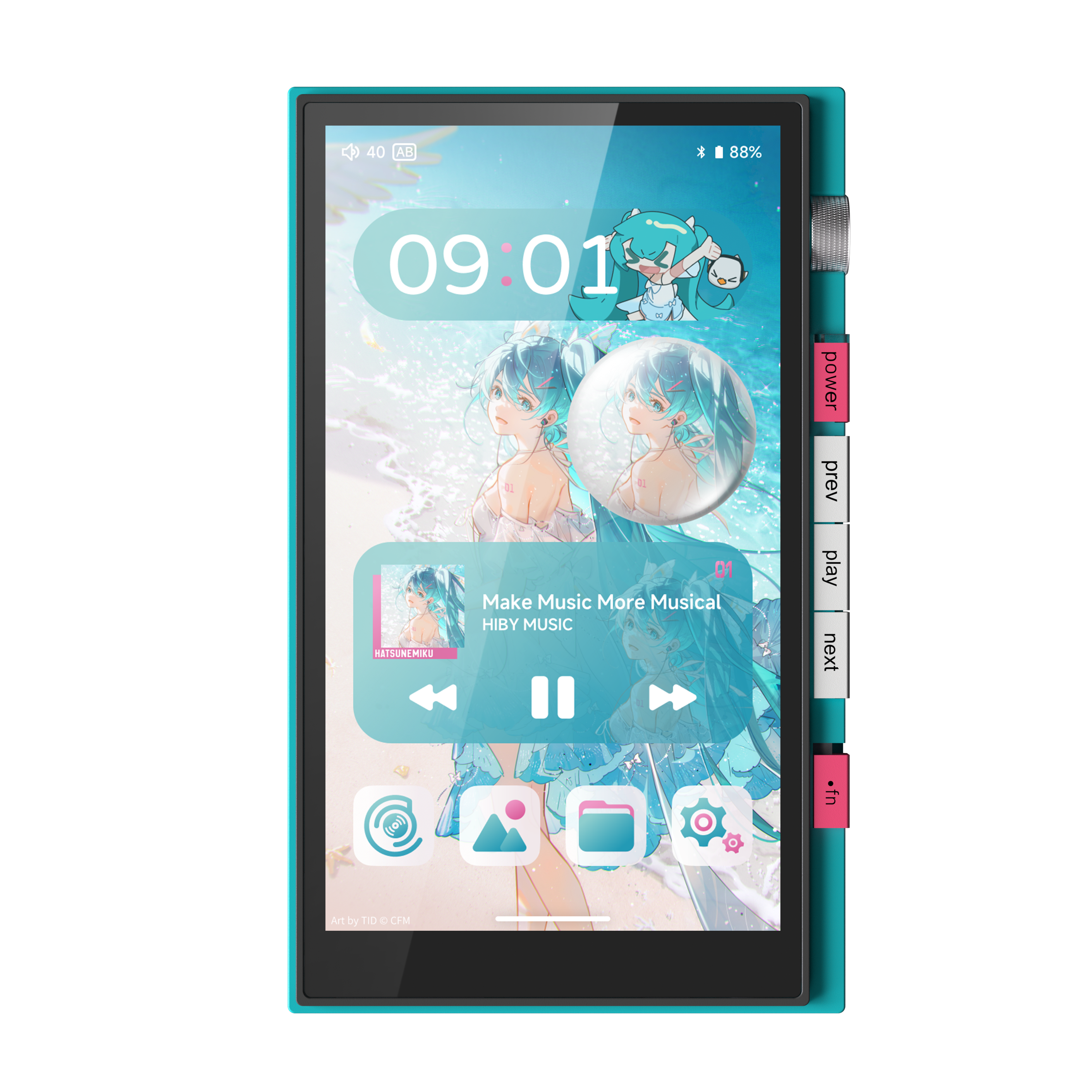
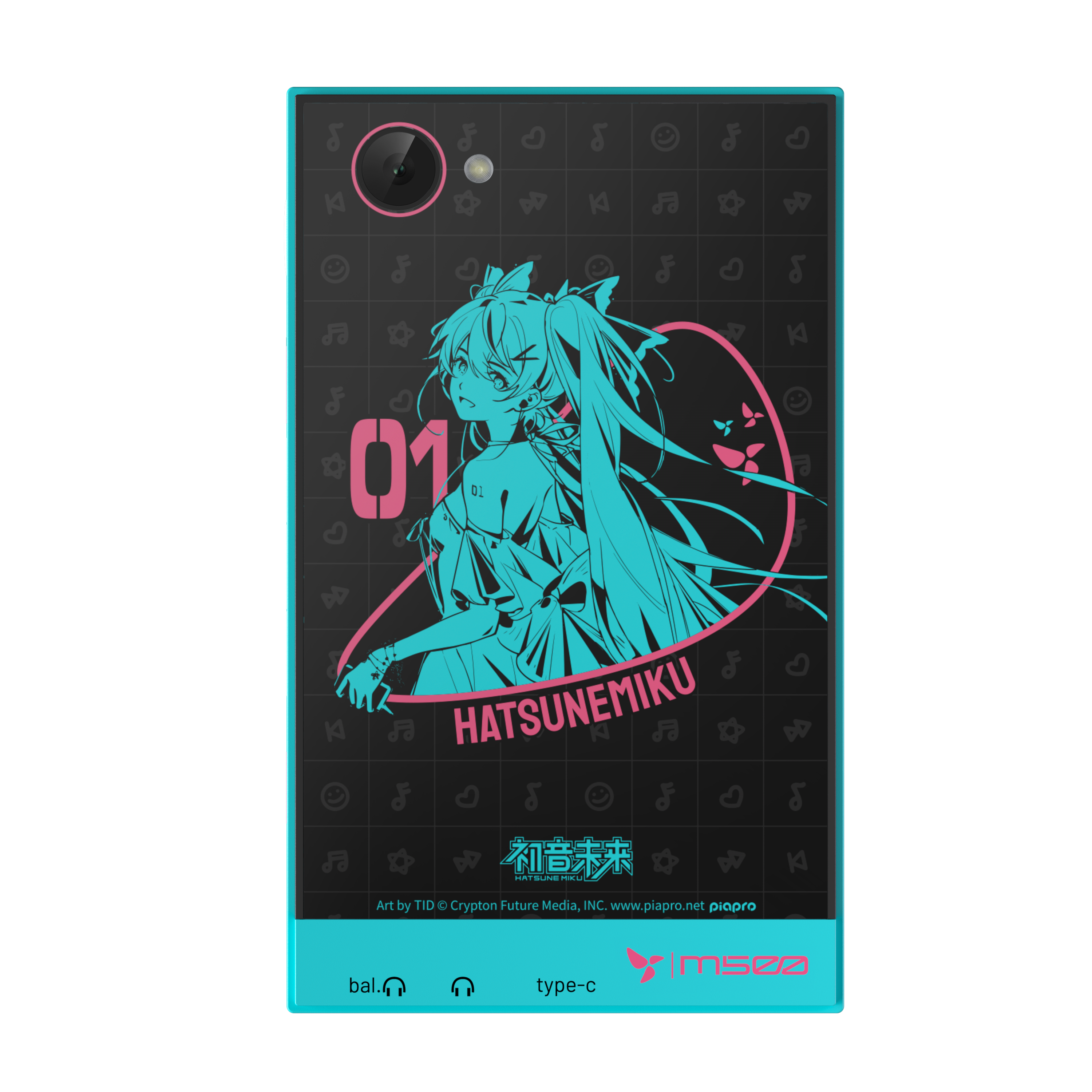
1. Product introduction
- Based on Android14 system, using Qualcomm Snapdragon 680 main control, with 4G memory + 64GB storage.
- Adopting dual CS43198 decoding architecture, supporting DSD512 and PCM768kHz/32bit decoding
- Supports 4.4mm Balance, 3.5mm PhoneOut (PO) and other analog outputs
- Supports USB Audio output (USB DAC input is not supported)
- Support Bluetooth output (support LDAC, aptX HD, aptX, AAC, SBC and other encodings)
- Supports dual-mic recording, using a unique dual-mic recording noise reduction algorithm
- Supports FM radio
- Support speakers (dual speakers)
- Supports camera (for QR code scanning) and GPS function (WIFI version does not have this function)
- Supports external MicroSD(TF) card up to 2TB
- Supports Bluetooth 5.0 and 2.4G and 5G dual-band WiFi
The following introduction is based on the front view of the player screen:
- One microphone on the top and one on the bottom
- From top to bottom, the right side is: volume knob key, previous song, playback and pause, next song, and Fn function key (specific functions can be customized)
- On the left: MicroSD (TF) card slot, lanyard interface
- The bottom from left to right is: PO, BAL, Type-C, speaker
Unboxing video
2. Button usage instructions
The following introduction is based on the front view of the player screen:
- The right side from top to bottom is: The right side from top to bottom is: volume knob key, previous song, playback pause, next song, Fn function key (specific functions can be customized)
Button definition
| Button | Function |
|---|---|
| Power button | Long press: turn on and off the phone; short press: turn on and off the screen |
| Next song | Short press: Next song |
| Pause play | Short press: Pause play |
| Power button | Long press for more than 10s: Hardware reset |
| Press and hold the previous song and boot | Used to enter recovery mode, see the detailed operation recovery 模式操作 |
| Fn function key | Multi-function button |
In recovery mode, you can clear system data and upgrade without entering the system.
- The previous song button displays a robot interface.
- In this interface, press and hold the power button and the previous song button to enter recovery mode.
- Use the previous song and next song to select, and the power button to confirm.
3. Interface usage instructions
The following introduction is based on the front view of the player screen:
- On the left: MicroSD(TF) card slot
- From left to right at the bottom: Speaker, Type-C, PO, BAL
Audio output interface
The audio output interface can be used by different audio devices, such as headphones and other devices with 3.5mm and 4.4mm interfaces.
- PO: 3.5mm single-ended interface headphone output
- BAL: 4.4mm balanced interface headphone output
USB interface
The physical interface used by the USB interface is the Type-C interface, through which the following functions can be provided.
The player allows USB to work in two different modes:USB OTG and USB 设备。
When the player acts as USB OTG When used (can be understood as USB on the computer):
- Connect U disk or mobile hard disk: read data from U disk or mobile hard disk;
- Connect USB decoder or USB tail: output high-definition audio data;
- Connect to a wired network card: access the Internet through a wired network;
When the player acts as USB 设备 When using:
- USB MTP (USB file management), for some questions about the use of USB MTP, please refer tohere 。
Charging interface
The physical interface used by the charging interface is the Type-C interface, and charging can be achieved by connecting the charger through this interface.
- Charging supports ordinary charging heads, and the maximum charging current can reach 5V@2A.
MicroSD(TF) card interface
The MicroSD(TF) card interface is used to insert MicroSD(TF) cards, mainly to expand storage capacity. The player can support MicroSD (TF) cards up to 2TB, and the file systems supported by the player include FAT32\exFAT\NTFS.
LED indicator
| Status | Color |
|---|---|
| Normal | Light Blue■ |
| Charging | Red Breathing Effect (Normal)■ |
4. Start using
First boot
- Press and hold the power button for 2 seconds, the player will enter the power-on state
The first boot time will be longer. - After the boot animation is completed, the system enters the boot setting interface.
- Select the corresponding language
- Select the corresponding time zone
- Complete setup
- First boot completed
Navigation bar
The bottom of the screen is the system navigation bar, which has two modes. 手势导航 and “三按钮”导航, the default is 手势导航。
Users can perform quick operations on the navigation bar through 设置 -》系统 -》 手势 -》 系统导航 Users can switch navigation bar modes.
- Swipe up from the navigation bar: return to the desktop
- Swipe and hover from the navigation bar: enter the task list
- Swipe left or right on the navigation bar: quickly switch to the previous or next APP
- The middle button is the Home key: return to the desktop
- The button on the right is the taskbar key: enter the task list
- The button on the left is the return key: return
NOTE: Changing the display size may cause the left and right button functions of "three-button" navigation to be swapped.
global gestures
- Swipe in from outside the left or right screen: Return
- Three-finger swipe: screenshot
- Double-click the screen: open the screen (this function is turned off by default and needs to be turned on)
设置 -》 系统 -》 手势 -》 双击唤醒)
Main interface
Introduces the related functions of the main interface and some common operations. The main interface contains the desktop and application list. You can enter the application list by swiping up on the desktop.
desktop
-
Status bar at the top
For information about the status bar, please refer to the status bar information description below. -
The middle is the desktop icon area
The desktop area can be used to place items that require quick operations应用图标、微件wait
Long press on a blank area of the desktop to pop up home screen settings, widgets, wallpapers, etc. -
The bottom is the resident shortcut operation
应用图标
Mainly to place some preset high-frequency application shortcuts here to facilitate users to operate quickly.
Application list
- exist
桌面Swipe up with one finger to enter the application list - Long press
应用图标Can call up the menu - Long press
应用图标and move, you can应用图标Add to desktop for quick operation
status bar
Some information in the status bar.
Left side of status bar
-
time
Display the current time. -
Other notification information Notification information sent by the application used by the user may be folded in the notification bar if there is not enough display space at the current location. The user needs to move down the status bar to release the notification bar.
Right side of status bar
-
Hide other statuses
Display content: a small dot.
Indicates that the status bar has too many statuses to display all of them, and some statuses are hidden. -
Bluetooth status information
Display Bluetooth information, including signal strength, connection status, etc. -
WiFi status information
Display WiFi information, including signal strength, connection status, etc. -
Battery level information Displays battery icon, charging status, percentage and other information.
Battery percentage switch: Settings -> Battery -> Battery percentage.
5. Play music
Import local music
Import music via USB
The player supports connecting to a computer via USB and then using the MTP protocol to transfer files. The following is a brief introduction. For more information on the use of MTP, please refer tohere 。
The following is MacOS and Windows Give a brief explanation:
MacOS requires the installation of third-party drivers to use it. The following two methods are available:
app
- Open MTP:https://openmtp.ganeshrvel.com/
- Android official support:https://www.android.com/filetransfer/
Systems after Windows 7 already include the MTP driver and can be used directly.
You can try the following steps:
- Make sure the USB cable connection is normal
- After confirming that the USB cable is connected, pull down USB in the notification bar and select File Storage;
- Restart your computer and try again
- Restart the player and try again
Import music via MicroSD(TF) card
Insert the MicroSD(TF) card into the MicroSD(TF) card slot of the player. The player supports three file formats: FAT32\exFAT\NTFS.
Play local music with Haibei Music
- Open [Haibei Music]
- If you have never scanned songs, it will be displayed as follows. At this time, click [Start Scan] to scan the songs and build a song library.
Scan songs
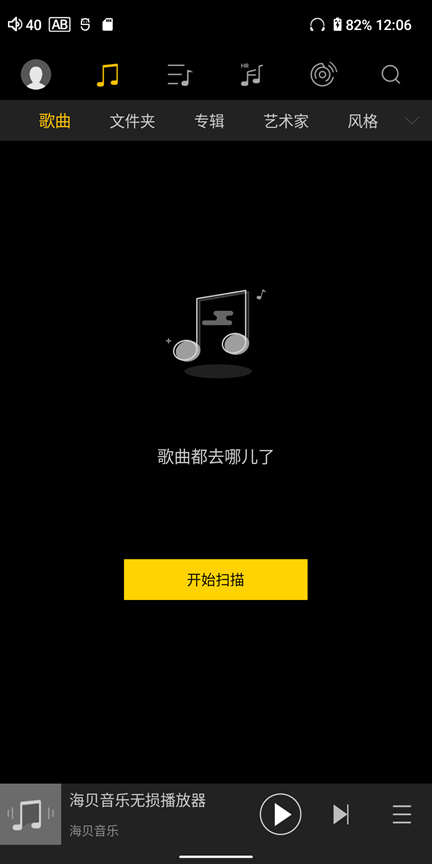
- Just wait for the scan to complete and click on the song to play it.
For more instructions on using Haibei Music, please refer tohere。
Play streaming music with Haibei Music
- Please make sure you are connected to the Internet
- Open [Haibei Music]
- Click the [Streaming Media] icon on the top menu, and click again to select different streaming media services, such as [Sony Selections] [HiFi Music], and [Tidal] [Qobuz] for other languages.
streaming media
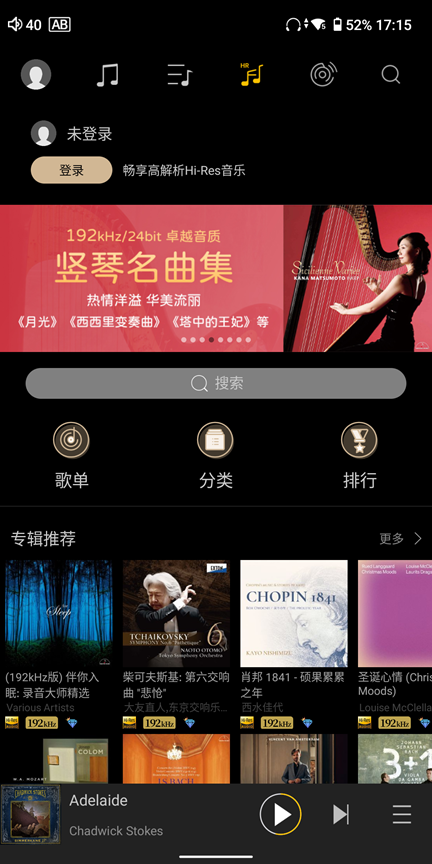
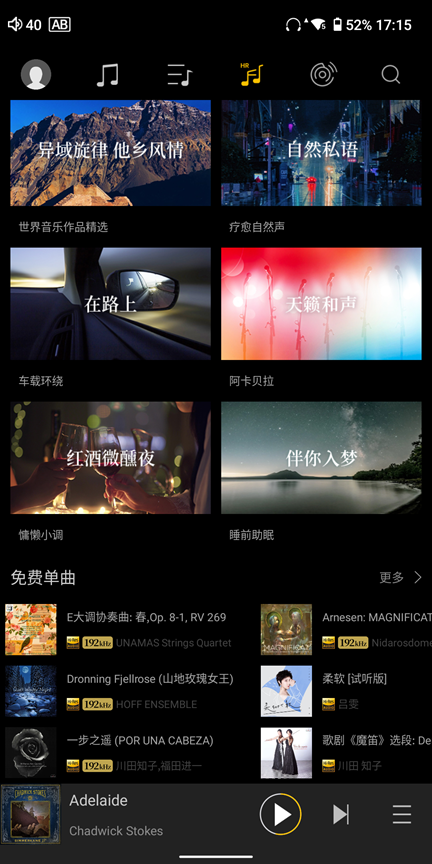
- Select [Sony Selection], there are free trial tracks at the bottom
Sony's selection of free songs
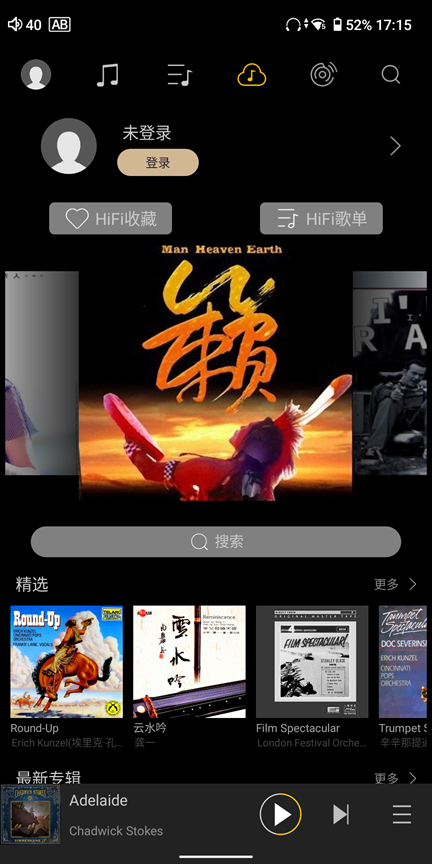
- Select [HiFi Music] and then log in to the account. Users can listen to MP3 format tracks for free.
HiFi music songs
- Select [Tidal] [Qobuz], you need to log in to the account of the corresponding platform, and then use the corresponding service
For more instructions on using Haibei Music, please refer tohere。
6. Settings
WiFi settings
Entrance: Settings -> WLAN -> Internet -> Turn on WLAN -> it will automatically scan, and then select the corresponding WiFi network connection.
Go to Settings -> WLAN -> Add network -> Advanced options -> Hidden networks -> Set to "Yes"
Bluetooth settings
Entrance: Settings -> Bluetooth -> Turn on Bluetooth
Enter Settings -> Bluetooth -> Bluetooth Audio Settings
USB
Entrance: Settings -> USB -> Default USB configuration
- file transfer
MTP protocol transmission is specially used to transfer files. - PTP
PTP protocol transmission is specially used to transmit photos. - Not used for data transfer
Designed to turn off data transmission and can be used to charge only.
application
Entrance: Settings -> Application
Application management can be performed in this option:
- application list;
- Application activation, deactivation, permission management, cache management, etc.;
- Google App Market
The switch of the Google Play application market can be used to open or close the Google Play application market. - Coolan application market
The switch of the Coolan App Market can be used to open or close the Coolan App Market.
Battery
Entrance: Settings -> Battery
- Battery power percentage: used to manage the display of battery power percentage in the status bar;
- Idle shutdown: Used to manage idle shutdown of the system (idle state is defined as no audio playback);
- Scheduled shutdown: used to manage the scheduled shutdown of the system (when the schedule is up, the system will automatically shut down);
Sound and vibration
Entrance: Settings -> Sound and vibration
- Speaker mute: Turn on the switch to mute the speaker;
show
Entrance: Settings -> Display
Used to change the display mode of the player:
- Turn on the power light
Power indicator switch, used to turn the indicator light on or off.
Fn function key settings
Entrance: Settings -> System -> Fn function key settings
- Key lock
To quickly perform the key lock function, set the Fn function key to key lock, that is, you can use the Fn function key as a HOLD key to lock other keys. - recording
Quickly enter the recording mode and set the Fn function key as the recording button to make the M300 work in the dedicated recording mode. - flip vertically
Quickly perform display flipping. - Speaker mute
Quickly mute your speakers.
gesture
Entrance: Settings -> System -> Gestures
- System navigation
Gesture navigation
"Three-button" navigation - Swipe down on the screen with three fingers
Switch the three-finger swipe screenshot function on and off - Double click to wake
Double click the switch to wake up
parent mode
Entrance: Settings -> System -> Parental Mode
- Installing apps in parental mode requires an installation password;
- In parent mode, the device cannot be used from 22:00 pm to 6:00 am the next day;
Force speaker output
Entrance: Status bar drop-down -> Force speaker output
- This function is mainly used to solve the problem that headphones need to be connected in FM mode, but speaker output cannot be used;
7. Pre-installed applications
This article introduces some related applications pre-installed in HiBy Player and the functions of these applications. Currently, uninstallation of pre-installed applications is not supported, but some applications can be closed and run.
-
HiBy Music
The player software provided by Haibei, you can check the detailed operation guide.here。 -
cool
In domestic application markets with relatively few advertisements, you can download the third-party applications you need in the market.
[How to turn off running] Settings -> Applications -> Coolan App Market -
Google Play
Google App Market allows you to download required third-party applications from the market. [How to turn off running] Settings -> Applications -> Google App Market -
Via
An ultra-lightweight browser that allows you to browse the web. Similar types of applications include: Chrome, Edge, etc.; -
FM radio
FM radio is used to realize the function of FM radio. The FM radio needs to be connected to an earphone as an antenna to function properly; -
Voice memo
Voice memo, through this application you can achieve dual-microphone noise reduction recording;
8. Frequently Asked Questions
- Frequently asked questions can go hereCheck