HiBy R8II User Manual
Welcome to use HiBy's products
Thank you for purchasing the portable high-definition lossless music player R8II, launched by HiBy. In order to make R8II give you a better experience, this article introduces the common functions and operating methods of R8II. I hope it can help you understand and use R8II more comprehensively.
At the same time, you are also welcome to log in to the official website of HiBy at https://store.hiby.com/ to learn more about HiBy product information and purchase related products.
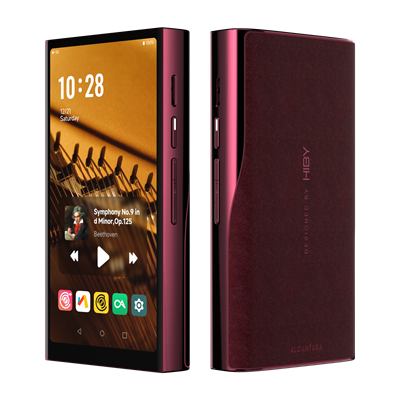
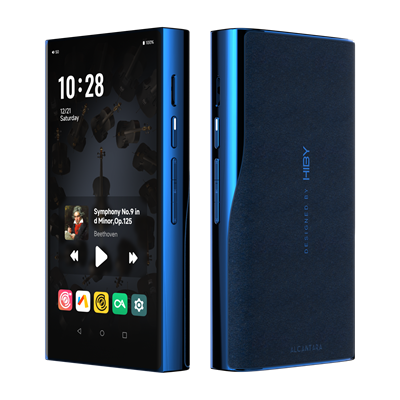
1. Product introduction
- Based on Android12 system, Qualcomm Snapdragon 665 master control, with 4G running memory and 64GB of internal storage
- Adopt Darwin MPA decoding architecture, with up to support DSD1024 and PCM 1536kHz decoding
- Supports PhoneOut(PO), LineOut(LO), Balance and Balance LineOut analog audio output
- Supports coaxial (S/PDIF) output
- Supports Bluetooth audio output (supports UAT, LDAC, aptX HD, aptX, AAC, SBC, etc. encoding)
- Supports USB audio output
- Supports MQA 16x unfolding
- Supports external MicroSD(TF) cards up to 2TB
- Supports Bluetooth 5.0 and 2.4G and 5G dual-band WiFi
- Supports PD2.0 fast charging protocol, maximum support for 18W power charging
- Support local playback, Bluetooth decoding, USB decoding, etc.
The following introduction is the front view of the player screen as reference:
- From top to bottom on the right are: MicroSD(TF) card slot, power button (LED indicator), previous song, playback pause, next song
- From top to bottom on the left are: volume up and volume down
- The bottom is from left to right: BAL.LO, LO, Type-C, PO, BAL
2. Button usage instructions
The following introduction is the front view of the player screen as reference:
- From top to bottom on the right are: MicroSD(TF) card slot, power button (LED indicator), previous song, playback pause, next song
- From top to bottom on the left are: volume up and volume down
| Button | Function |
|---|---|
| Power button | Long press: power on and off; short press: switch screen |
| Previous song | Short note: Previous song |
| Next song | Short button: Next song |
| Play Pause | Short button: Play Pause |
| Power button + next song | Press and hold for 10s at the same time for more than 10s: Hardware reset |
| Press and hold the previous song to turn on | Use it to enter recovery mode, see the specific operationRecovery Mode |
In recovery mode, you can not enter the system for clearing and upgrading system data.
- Press and hold the previous song to turn on, and a robot interface is displayed.
- In this interface, press and hold the power button, press play and pause, and then enter recovery mode
- Play pause key and next song key are used to make selections, and power keys are used to make sure.
3. Interface usage instructions
The following introduction is the front view of the player screen as reference:
- From top to bottom on the right are: MicroSD(TF) card slot, power button (LED indicator), previous song, playback pause, next song
- The bottom is from left to right: BAL.LO, LO, Type-C, PO, BAL
Audio output interface
The audio output interface can be provided to different audio devices for use, such as: headphones with 3.5mm interface, headphones with 4.4mm balanced interface, line of 3.5mm interface, balanced input amplifier with 4.4mm interface and other devices.
- PO: 3.5mm single-ended interface headphone output
- LO: 3.5mm single-ended interface line output
- BAL: 4.4mm balanced interface headphone output
- BAL LO: 4.4mm line output of balanced interface
USB port
The physical interface used by the USB interface is the Type-C interface, through which the following functions can be provided.
The player allows USB to work in two different modes:USB OTGandUSB Device。
When the player asUSB OTGWhen using it (can be understood as USB on the computer):
- Connecting a USB or mobile hard drive: Read data from a USB or mobile hard drive;
- Connect to a USB decoder or USB small tail: output high-definition audio data;
- Connect to a wired network card: access the Internet through a wired network;
Coaxial signal interface
The physical interface used by the coaxial signal interface is the Type-C interface, and the transmitted audio signals adopt the S/PDIF interface protocol. Through this interface, high-standard audio digital signal output can be provided, which can be used through this interface.
Charging interface
The physical interface used by the charging interface is the Type-C interface, through which the charger can be connected to the charger.
- Charging supports PD fast charging protocol. Please use standard PD fast charging head and standard C2C cable for PD fast charging.
- Charging also supports ordinary charging heads, which can reach a charging current of 5V@2A.
MicroSD(TF) card interface
The MicroSD(TF) card interface is used to insert a MicroSD(TF) card, mainly to expand storage capacity. The HiBy player can support MicroSD(TF) cards up to 2TB, and the player supports file systems including FAT32\exFAT\NTFS.
LED Indicator
| Status | Color |
|---|---|
| Normal | Light blue ■ |
| Normal charging | Red breathing effect (normal)■ |
| Fast Charging | Red Breathing Effect (Fast)■ |
| PCM(~48k) | Yellow■ |
| PCM(88.2k~192k) | Cyan■ |
| PCM(352.8k~) | Orange■ |
| DSD | White ■ |
| MQA | Green■ |
| MQA Studio | Blue■ |
| MQA Core (MQB) | Magenta■ |
4. Get started
First boot
- Press and hold the boot key for 2s, and the player enters the boot state The first boot time will be longer.
- After the startup animation is completed, the system enters the boot settings interface
- Select the corresponding language
- Select the corresponding time zone
- Complete the setup
- The first startup is completed
Navigation bar
The system navigation bar is at the bottom of the screen, and there are two modes of the navigation barSystem navigationand3-button nvigatoin, default isSystem navigation。
Users can operate quickly on the navigation bar throughSettings -》System -》 Gestures -》 System navigationUsers can switch navigation bar mode.
- Slide from the navigation bar: Return to desktop
- Slide over from the navigation bar: Go to the task list
- Swipe left and right on the navigation bar: quickly switch to the previous and next APP
- The middle button is Home key: Return to the desktop
- The button on the right is the taskbar key: enter the task list
- The button on the left is the return key: Return Note: Modifying the display size may cause the left and right button function swap of the "Three Buttons" navigation.
Global gestures
- Swipe from the left and right screens to the inside of the screen: Return
- Three fingers slide: screenshot
- Double-click the screen: Open the screen (this function is turned off by default and needs to be turned on
Settings -》System -》 Gestures -》 Double click wake up)
Main interface
Introduce the relevant functions of the main interface and some common operations. The main interface contains a desktop and an app list. Slide on the desktop to enter the app list.
desktop
-
The status bar is at the top For information descriptions about the status bar, refer to the information descriptions for the status bar later.
-
The desktop icon area in the middle The desktop area can be used to place fast operations
App Icon、Widgetswait Press and hold the blank area of the desktop to pop up the home screen settings, widgets, wallpapers, etc. -
The bottom is a permanent quick operation
App Icon
The main purpose is to place some preset high-frequency application shortcuts here to facilitate users to operate quickly.
Application List
- exist
DesktopSlide up with a single finger to enter the application list - Long press
App IconCan call out the menu - Long press
App IconAnd move, you canApp IconAdd to desktop for quick operation
Status bar
Some information on the status bar.
Status bar left
-
Volume value Display the volume value of the current output port. The volume value in red indicates that the current volume value is too high. Users need to be careful not to use it for a long time at high volume, otherwise it may cause hearing loss. After pulling down the notification bar, clicking the volume value position can trigger the volume control UI, and the current output accent volume can be adjusted under the volume UI.
-
Class A/AB status indicators Indicates whether the current amplification operation mode is Class A or Class AB.
-
Other notification information If the notification information sent by the application used by the user is insufficient in the current position, it may be collapsed in the notification bar. The user needs to pass the status bar position to release the notification bar.
On the right side of the status bar
-
Hide other states Display content: a small dot. It means that there are too many statuses on the status bar, which cannot be displayed in full, and some statuses are hidden.
-
Output port status LineOut PhoneOut Balance Balance LineOut
-
Bluetooth status information Displays Bluetooth information, including signal strength, connection status, etc.
-
WiFi status information Displays WiFi information, including signal strength, connection status, etc.
-
Sampling rate information The displayed content is the final output sample rate information.
-
Battery level information Displays battery icon, charging status, percentage and other information. Power percentage switch: Settings -》 Battery -》 Battery percentage.
5. Play music
Import local music
Import music via USB
The player supports connecting to the computer via USB and then using the MTP protocol to transfer files. Here is a brief introduction. For more information about the use of MTP, please refer toHere 。
The following isMacOSandWindowsMake a brief description:
MacOS requires a third-party driver to be installed before it can be used. Now there are two options:
app
- Open MTP:https://openmtp.ganeshrvel.com/
- Official Android support:https://www.android.com/filetransfer/
Systems after Windows 7 have already included MTP drivers and can be used directly.
You can try it as follows:
- Make sure the USB cable connection is normal
- After confirming that the USB cable is connected, select File Storage in USB in the notification bar;
- Restart the computer and try again
- Restart the player and try again
Import music via MicroSD(TF) card
Insert the MicroSD(TF) card into the player's MicroSD(TF) card slot. The player supports three file formats: FAT32\exFAT\NTFS.
Play local music with HiBy Music
- Open [HiBy Music]
- If you have never scanned a song, it will be displayed as follows. Click [Start Scan] at this time to scan the song and build a song library.
Scan songs
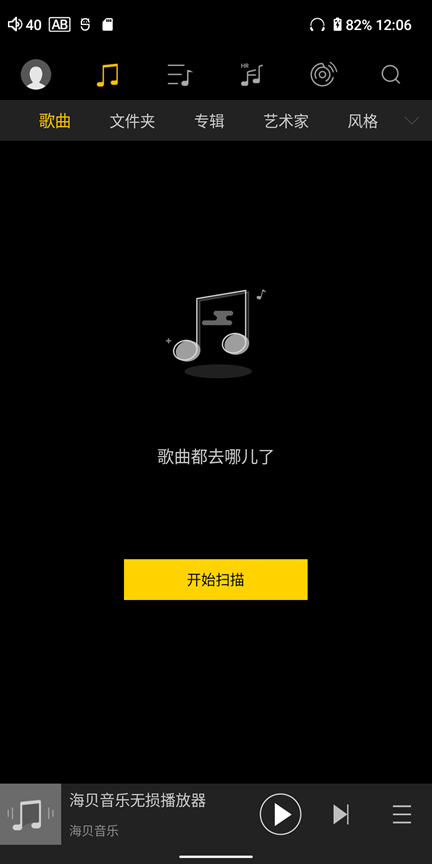
- Just wait for the scan to complete, click the song to play it
For more instructions on using HiBy Music, please refer toHere。
Play streaming music with HiBy Music
- Please make sure you are connected to the network
- Open [HiBy Music]
- Click the [Streaming] icon at the top menu, click again to select different streaming services, such as [Sony Selection] [HiFi Music], and other languages can choose [Tidal] [Qobuz]
Streaming
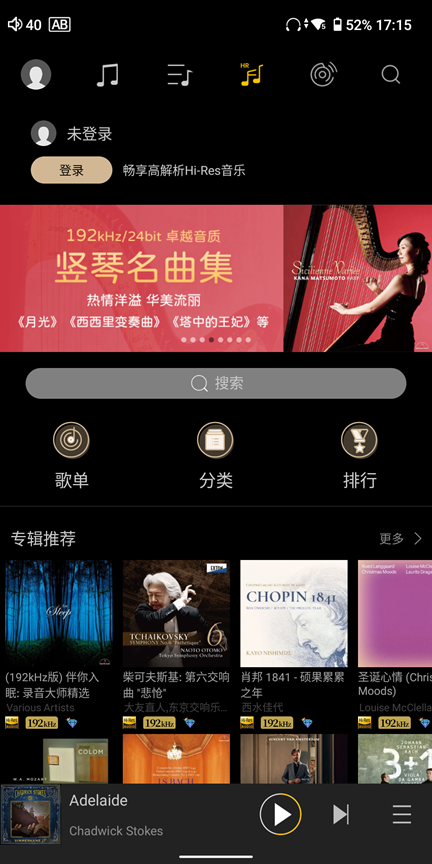
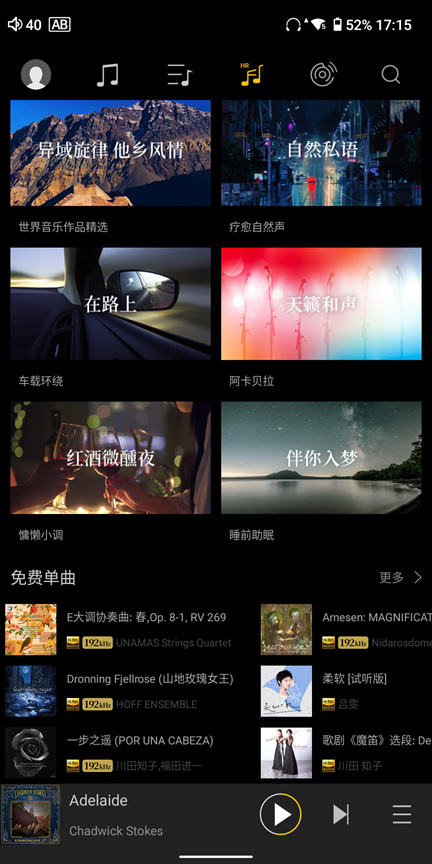
- Choose [Sony Selection], and there are free trial songs at the bottom
Sony Selected Free Songs
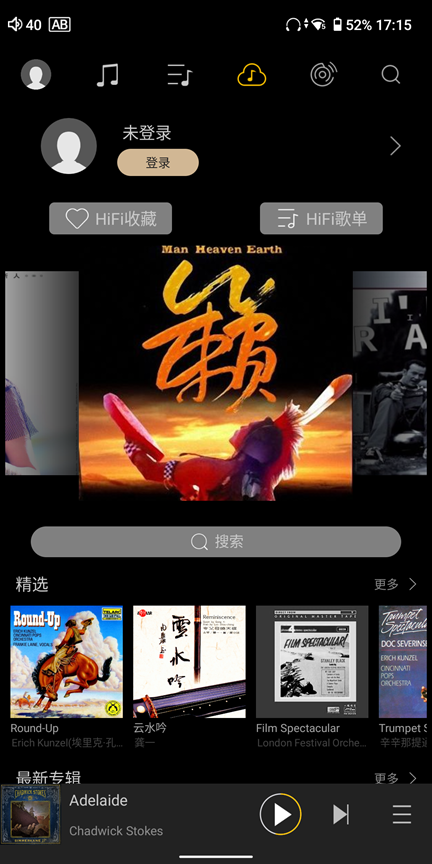
- Select [HiFi Music] and log in to your account. Users can listen to MP3-specific tracks for free
HiFi Music Song
- Select [Tidal] [Qobuz] and you need to log in to the corresponding platform account and then use the corresponding service.
For more instructions on using HiBy Music, please refer toHere。
6. Settings
WiFi settings
Entrance: Settings -> WLAN -> Open WLAN -> It will automatically scan, and then select the corresponding WiFi network connection.
Enter Settings -》WLAN -》Advanced Options -》Hide Network -》Set to "Yes"
Bluetooth settings
Entrance: Settings -> Bluetooth -> Open Bluetooth
USB
Entrance: Settings -》 USB -》 USB Working Mode
- Automatic mode It can automatically determine whether the USB is operating in USB OTG mode or device mode based on the plugged peripheral.
- OTG mode Force USB to work in USB OTG mode. If the peripherals inserted by the user are: USB drive, mobile hard drive, USB decoder, USB small tail, USB network card and other devices, and the player cannot recognize it, you can force the player to work in this mode.
- Device Mode Force USB to work in USB device mode. If the user wants to connect the player as a peripheral to a computer or other host, and the computer or other host fails to recognize it, the player can be forced to work in this mode.
Working mode
Entrance: Settings -》 Working mode
Used to change the player's working mode:
-
Android mode The player's default working mode, in this mode, you can switch different third-party software like using an Android phone, and download and install third-party software.
-
Pure tone mode With HiBy Music as the only front desk software, in this mode, users can rule out other interference factors and listen to music more immersively.
-
USB DAC mode USB DAC mode is used as a USB decoder, and users can experience the player's sound through a USB connection. You can click on the specific usage methodHere。
-
Bluetooth Receive Mode The Bluetooth reception mode is to use the player as a Bluetooth decoder. Through Bluetooth connection, you can accept Bluetooth music from different phones, and feel different sounds directly output from the phone. You can click on the specific usage methodHere。
Audio settings
-
Digital filter mode Selecting different digital filter types can achieve different tones.
-
Zoom mode Choose different magnification modes: Class A, Class AB.
-
Gain Select different gain modes: the options are Low, Middle, High, and each level is 6dB different.
-
Plugin Select the sound effects plug-in, and different plug-ins provide a different extended audio processing function.
-
MSEB The sound effect setting function of HiBy provides a more visual description to allow customers to adjust different tones more intuitively.
-
PEQ For more professional sound setting functions for more professional users, more professional sound setting is provided, so that customers can adjust the tone according to their needs more independently on a larger scale.
-
DSD Gain Compensation Since the DSD tracks may have a certain attenuation compared to PCM tracks, you can compensate for the DSD tracks here.
-
Balance Adjust the volume difference between left and right channels. There are some devices with different left and right channels or some users with different left and right hearing. This can be used to adjust it.
-
Maximum volume Limit the maximum adjustable volume range to avoid sudden volume changes caused by misoperation.
-
MQA decoding Because the information of MQA is encoded in the audio stream, it may lead to delays in identifying information of MQA. If the user feels that the MQA audio support for third-party applications is not good (for example, Tidal), the MQA decoding function can be turned off.
-
Spdif Digital Volume Lock Lock the Spdif digital signal amplitude, and for Spdif decoders that do not support volume adjustment, the volume adjustment function can be realized after the lock is released.
-
USB digital volume lock Lock the USB audio digital signal amplitude, and for USB decoders that do not support volume adjustment, the volume adjustment function can be realized after the lock is released.
Display settings
Entrance: Settings -> Display settings
Used to change the display related settings of the player:
-
App icon style To switch to different App icon styles, currently available are:
绝绝紫and原始风格。
绝绝紫: The overall style is purple tone, which is consistent with the purple appearance原始风格: The overall style is native to Android, the App icon has not been adjusted -
Reset desktop wallpaper Used to quickly restore desktop wallpaper modified by users and restore to factory status.
-
Automatically rotate the screen Adjust the direction of the display screen and whether it is a horizontal or vertical screen display according to the direction detected by the sensor.
-
Lock vertical flip The fixed display direction is flipped up and down, which makes it easier for users to connect headphones or USB ports from the top.
-
Turn on the power indicator Power indicator switch, used to turn the LED indicators on or off.
-
HiBy volume pop-up window The HiBy volume pop-up window switch is used to turn on and close the HiBy custom-made volume pop-up window. When closing, it uses the Android native volume pop-up window.
7. Preinstalled applications
This introduces some related applications preinstalled by HiBy Player and the functions of these applications. It does not currently support uninstalling preinstalled applications, but some applications support shutdown and running.
-
HiBy Music Player software provided by HiBy, you can view the specific operation instructionsHere。
-
HiByCast Server The local area network same-screen control software provided by HiBy. You can view the specific operation instructions.Here。
【How to turn off the run】Settings -》 Applications -》 HiByCast -
Cool An In the domestic application market with relatively few advertising, you can download the required third-party applications on the market. 【How to turn off the run】Settings -》 Applications -》 Cooan Application Market
-
Google Play Google App Market, you can download the required third-party apps on the market. 【How to turn off the run】Settings -》 Applications -》 Google App Market
-
Via Ultra-lightweight browser, through which you can browse web pages. Similar applications include: Chrome, Edge, etc.;
8. USB DAC mode
USB DAC Mode Guidelines
When the player is working in USB DAC mode, you can think of the player as a USB HD decoding receiver or as a USB sound card. The player works in USB DAC mode supports the USB Audio Class 2.0 (UAC2) protocol, but does not support USB Audio Class 1.0 (UAC1), so the host side also needs to support USB Audio Class 2.0 (UAC2).
-
From the top of the player, drop down on the notification bar, select [Work Mode], and then select [USB DAC Mode].
-
From the desktop icon to enter [Settings]-》[Work Mode]-》Select [USB DAC Mode].
Different host systems will have different power supply, so USB DACs offer two working modes:
-
USB DAC mode (charging) After selecting this mode, the current provided by the host is not only used to work and use the player, but also to charge the player. Therefore, it is recommended to choose this mode in scenarios where the host power supply current is large, such as when the host is a computer.
-
USB DAC mode (not charged) After selecting this mode, the current provided by the host is only used to work for the player. Therefore, it is recommended to select this mode in scenarios where the host power supply current is small. For example, when the host is a mobile phone, select this mode.
There are certain differences in the support of USB Audio Class 2.0 (UAC2) for different host systems. Please confirm the support according to the corresponding system. Please jump to the details.Here, the following provides a brief reference:
-
Windows Windows (Win7/Win8/Win10 1703 previous version) does not support the USB Audio Class 2.0 (UAC2) protocol, so drivers are required to be installed to use. Please refer to the driver installation.Here。
Windows (Win10 1703 later) begins to support USB Audio Class 2.0 (UAC2) protocol, plug and play. When the computer uses an external power supply, it is recommended to use USB DAC mode (charging). When the computer is powered by a battery, it is recommended to use USB DAC mode (not charged). -
MacOS MacOS itself already comes with a driver, and you can connect the player to the MacOS computer via a USB cable. When the computer uses an external power supply, it is recommended to use USB DAC mode (charging). When the computer is powered by a battery, it is recommended to use USB DAC mode (not charged).
-
Linux distribution Linux's USB DAC support is determined by the kernel. Whether the kernel of different distributions is turned on USB sound card functions is uncertain. For Linux distributions of unsupported USB DACs, you can compile the kernel to implement USB sound card functions by yourself. Or find a third-party app to support USB DAC functionality. When the computer uses an external power supply, it is recommended to use USB DAC mode (charging). When the computer is powered by a battery, it is recommended to use USB DAC mode (not charged).
-
Android The Android side distinguishes between exclusive and non-exclusive methods.
Android non-exclusive Just plug the USB decoder (such as HiBy FC4/HiBy FC6) into the USB port of your phone and use it. If you insert it, you can download HiBy Music and try the exclusive mode of HiBy Music. Otherwise, the phone will not support it. Please contact the mobile phone manufacturer to confirm.
Exclusive Android use Download, install HiByMusic. Enter HiByMusic. Swipe right to open the settings options -> Settings -> Click HiByMusic exclusive USB output, open the exclusive output. Insert the USB decoder (such as HiBy FC4/HiBy FC6) directly into the phone. The phone will pop up "Allow SeaByMusic to access HiBy FC4" and click Allow.
It is recommended to use USB DAC mode (not charged) to save battery power on your phone or tablet.
-
iOS iOS itself already comes with a driver, and you can connect the player to iPhone/iPad via a USB cable. It is recommended to use USB DAC mode (not charged) to save battery power on your phone or tablet.
-
Game console So far, XBOX/PS/Switch and other game consoles only support USB Audio Class 1.0 (UAC1), so the player's USB DAC function cannot be used through the game console.
9. Bluetooth Receive Mode
Bluetooth Receive Mode Guide
When the player is working in Bluetooth reception mode, you can think of the player as a Bluetooth HD decoding receiver or as a Bluetooth headset (after connecting the headset). The player supports decoders such as LDAC/AAC/SBC, so the host side also needs to support encoders such as LDAC/AAC/SBC. Android phones generally support LDAC/AAC/SBC and other encoders, while iPhones only support AAC/SBC encoders for the time being.
- From the top of the player, down the notification bar, select Work mode, and then select Bluetooth Receive Mode.
- From the desktop icon to enter
Settings -》Working Mode -》Bluetooth Receiving Mode.
- When switching to Bluetooth reception mode, the player will automatically enter the pairing state, and when entering Bluetooth reception mode again, it will automatically connect to the device once;
- Turn on Bluetooth on the mobile phone and connect to the player device you have found;
- Play songs on mobile phone;
- Exit Bluetooth reception mode, enter Bluetooth settings, and delete the Bluetooth pairing of the corresponding phone.
- Enter Bluetooth settings on the mobile phone and delete the Bluetooth pairing of the corresponding player.
10. Frequently Asked Questions
R8II adopts HiBy's self-developed Darwin-MPA architecture. Because it is a DAC developed by itself. Unlike the common chips on the market, the self-developed DAC can achieve ideal goals through free design, so that the player can achieve sound effects that surpass conventional chips.
High resolution simulation taste.
- FAQs can be foundHere